
-
Events Widget
Purpose
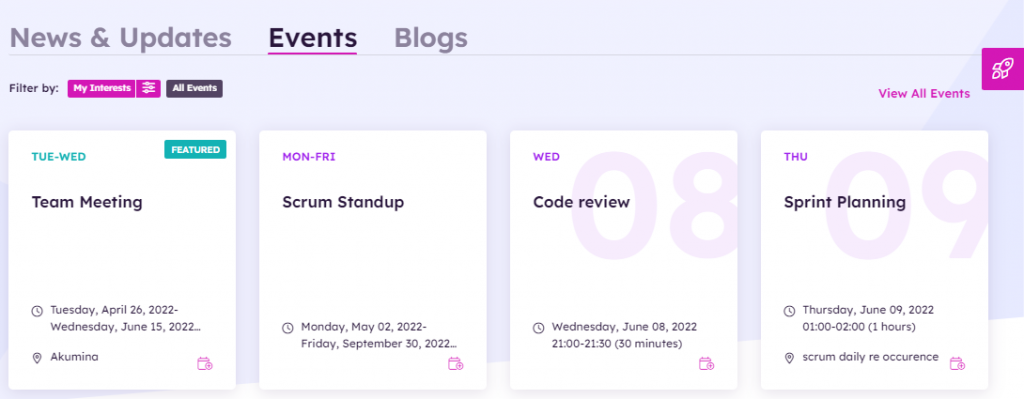
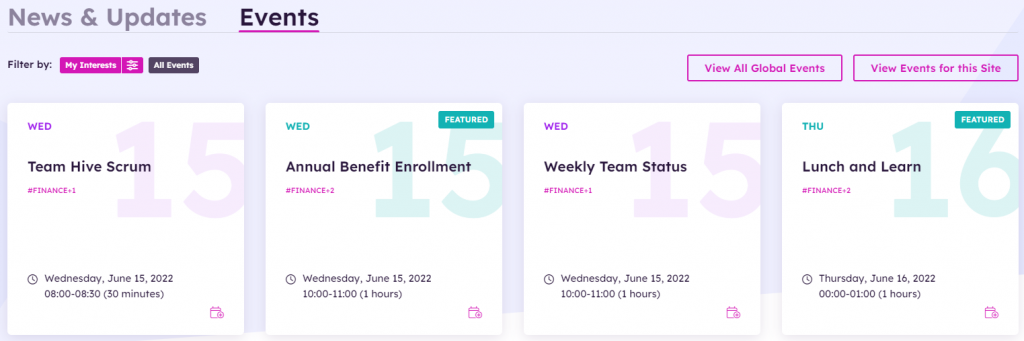
Displays event cards of the latest and/or featured news, filtered based on user’s preferences and refiners leveraging search.
Features
-
- Displays eight event cards in two rows of the latest and/or featured event from the Calendar_AK list. Calendar_AK list exists on each delivery site with unified content type and unified taxonomy.
- Search driven capability to query on content type (can be configured to filter on listed, etc.)
- Ability to display global (root site) or local events(department/market) including taxonomy tags and featured items
- Global events widget
- Display global events, latest modified first (shows all tags and taxonomy)
- Display events based on user preferred tags (if user preference is not set show all events)
- Local events widget
- Displays all events from current site (shows tags and taxonomy)
- Configurable to display events based on listId/taxonomy
- Global events widget
- Ability to configure to pull events from across sites or from the current site only.
- Each satellite site/subsite will maintain a list of its own events
- Quick filter buttons display the event based on the radio button selected for My Interests (defined user’s preferences), or All Events. Radio buttons are configurable in the widget property. Radio buttons can be disabled by removing them from the view.
- Events are loaded OOTB by default based on defined users’ preferences
- Click on “View All Events” will navigate the user to the events listing page.
- Click on an Event will navigate the user to the event detail page.
- Supports the standard date time format display and respects daylight savings time
- Supports reoccurring events
- Displays future based events sorted on the event occurrence date and time
- Items displayed are security trimmed based on specific user’s SharePoint permissions
- Ability to add the event to calendar( add event or series) downloads the event ics file and can be imported to calendar.
Details
-
- Widget Name: EventsWidget
- Available With: Release 5.5 Hive Install and above
- Content App Type: Author
- Content Type: AkuminaCalendar
- Content App Name: Event
- List Name: Calendar_AK
- Recommended Images Sizes: N/A
- Dependencies: Search API, SharePoint
- Note: Times are based on the user’s SharePoint time zone. If the user’s time zone is set to ignore, then the user will use the site’s regional SharePoint time zone setting.
Content
Below are the SharePoint columns specified in the AkuminaCalendar content type. The items used on this view are marked in Bold.
| Title | Title of the calendar event in the Event Content App list. This will display as the Event title unless the field “EventTitle’ below is populated then that will take presendence. |
| Location | N/A on this widget
|
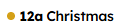
| Start Date | Used to place the event on the calendar and time of event if set. Example if Christmas was to begin at 12 am the user see this:
Note the highlight colors are based upon your sites theme.
|
| End Date | Used to know when the event will end e.g. should it display across several days? |
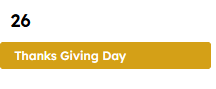
| All Day | If selected the the event will appear highlighted with out a time:
example:
Note the highlight colors are based upon your sites theme. |
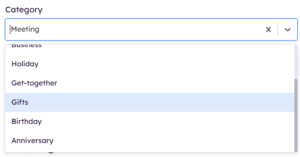
| Category | N/A for this widget
This field is only used by SingleCalendarWidget. These are SharePoint “Event” Content Type categories the options are : Meeting Work hours Business Holiday Get-together Gifts Birthday Anniversary
This can be used on this widget to Filter Events if configured on the widget property.
|
| Description | N/A for this widget |
| StaticUrl | What will be added to the site Url to create the friendly Url for the news article, used in the dynamic page navigation |
| FriendlyUrl | This is a calculated field based upon the site you are viewing the content. It is used to populate FriendlyUrlSearch. After Save this field is what is copied and pasted into a quicklink type app to add the article to the site navigation. |
| FriendlyUrlSearch | AkuminaSearch Content Type MUST be added to all “Structured Content” > Page supported list. This field is used to auto navigate by widgets such as Search, EventDetailWidget
After the article has been SAVED this field will be auto populated. It is hidden. |
| Featured | When checked, event is shown as a featured event and shown highlighted in the sites tertiary color. |
| Body | Text that displays in the Event Details as the body of the event page N/A for this widget |
| EventTitle | If this is set then it is the Title to display as the Event Title and displayed this is optional and here for historical reasons. Most often N/A and can be hidden in the content app. |
| Tags | Allows you to specify Tags associated with the event – will display on only the Event Detail Widget: |
| Departments | Allows you to specify Departments associated with the event – This will display only on the Event Detail Widget |
| Region | Allows you to specify Regions associated with the event – This will display only on the Event Detail Widget |
| Meeting URL | Meeting link if this set for this calendar item This will display only on the Event Detail Widget |
| Thumbnail URL | Allows you to specify an associated image and image description.- This will display only on the Event Detail Widget |
Properties
| Widget Framework | Determines the type of framework the widget provides. Value = react |
| Widget Title | Title that the widget will display to the user |
| Query Text | Query string to be executed for the search.
Default query text is (ContentTypeId:0x0100A75A29C9F7894C83AA451364A226C855*)(ArchiveDate>{Now}) |
| Select Fields | Columns in the SharePoint list the widget is using |
| Search Cross Sites | Determines to search for events across sites or events from this site only. When checked (true), searches for events across all sites. If not checked (false), searches this site only. |
| Enable Refiners | When checked, displays filter buttons |
| Search Refiners | Defines the search data refiners to be displayed in JSON format.
Name – the name of the alias set in the search schema Display Name – the name in the drop down to be displayed for refinement Id – corresponding term id from term store |
| Refiner Condition Batch Size | Determines if the search refiners are set to AND or OR condition. By default, the search refiner between the refiners is set to AND condition. |
| Batch Size | Number of events retrieved during a search call. Default is 8 for home page and 100 for listing page. |
| Enable Paging | Determines if lazy loading is enabled. When checked, enables lazy loading by pages by count based on the batchsize property. By default, pages by count of 8 on home page and 100 on events listing page. |
| Enable Interests | When checked, displays the My Interest filter to search for the latest events based on users’ preferences |
| Enable All Events | When checked, displays the All Events filter to search for all the latest events not occurring in the past |
| Sort By | Managed metadata property used to sort and display events. By default, sorts by event date. |
| Function to call before binding the UI events | OOTB -Blank (used for widget expansion): Name of the function called after the UI has been rendered to the screen |
| Function to call after fetching data | OOTB -Blank (used for widget expansion): Name of the function called after data has been fetched by the widget. |
Views
View Name: Events Home Page View Description: Displays events from across all sites. View Preview: View Name: Events Listing Page View Description: Displays the events by month in a calendar view, with toggle keys to view previous and next months events. View Preview: 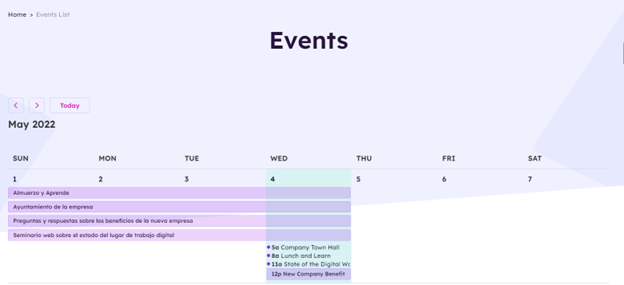 View Name: Events Department Page View Description: Displays department event cards of the latest and/or featured events, filtered based on local news View Preview:
- In Desktop, add to calendar/series would download the ics file which can be imported in any app like Outlook calendar etc.
- In Akumina Mobile app by default the ics file is downloadable with save as dialog option, widget can be customized to just default to download.
- In Mobile, depending on your device/OS and installed apps you could see an option to add to calendar, or see video below on how to add for Andriod and iOS –