
What does the background process do?
The Background Processor enables the handling of the following functions associated with the use of the Akumina Forms:
- Triggering of workflow of Form Submissions (Workflow options – All stages)
- Sends email notifications of Form Submissions (Notification option)
- Creation of Form Submission Data exports and emailing of links to the form submission exports
- Flushes Cache around Form Submission Counts when a new Form Submission exists
SMTP configuration
Set the following values in the interchange.settings.config file. This is required for Emailing of Form Submission – Notification option, and sending emails with links to the Form Submission Data Exports.
Generating an Encrypted Password
If Key Vault is not being used, then the following is a method to generate an encrypted password.
Execute the following command:
|
Akumina.Interchange.BackgroundProcessor.exe encrypt myplaintextpassword > encryptedpassword.txt |
Contents of encryptedpassword.txt, the value goes into interchange.settings.config
Encrypting value myplaintextpassword
Result => AQAAANCMnd8BFdERjHoAwE/Cl+sBAAAAcKrAUacNm0+JoEFgKVhV/AQAAAACAAAAAAAQZgAAAAEAACAAAADbL5sQ+6GDbLY2WzOER4y3F8wd8AN1K5LTh/7uS1LcRgAAAAAOgAAAAAIAACAAAABQZuHKQDOtF8X3rVYUlfXoe7Zm2pokebIUMCY9rChIvDAAAAC9rQzD5LGENqLmJjq3vj9GJS/4WHPd5wvHUszn3u2HKbuavwMB2ycDei1b0xqpVptAAAAAn+rdxCSXmM7fbWC8UNOfABHsAjYB8nYIzVAfHK3Z0F3IiP5ihoGm1XBZD0A/EKNmP5uYfORnqwTuRbdjdqcPow==
Configuration Options
There are four options for configuring the Background Processor:
- Within the local interchange web context
- Does not use Console App
- Configuration Handled within interchange.settings.config only
- Azure Web Jobs
- Uses Console App
- Configuration Handled within both the App.config and interchange.settings.config
- Scheduled Task
- Uses Console App
- Configuration Handled within both the App.config and interchange.settings.config
- OAUTH Tokens
- Uses Console App
- Configuration Handled within both the App.config and interchange.settings.config
*Note: If Interchange is running as an Azure WEB site, you must use the keyVault password mode, see below for interchange.settings.config key/values
IMPORTANT: The “BackgroundUser” user specified below MUST have one of the following permissions levels so that it can read/write to the required forms lists: Site Collection Adminstrator for the Site Collection – in this case the user will have full access and does not need to be added to any other groups Owner on the Parent Site if all subsites inherit permissions from the Parent site. Owner on the Parent Site and EACH subsite if the subsites break inheritance and use unique permissions interchange.settings.config file
https://**.sharepoint.com/sites/****” />
*Note: If Interchange is running as an Azure WEB site, you must use the keyVault password mode, see below for interchange.settings.config key/values
IMPORTANT: The “BackgroundUser” user specified below MUST have one of the following permissions levels so that it can read/write to the required forms lists: Site Collection Adminstrator for the Site Collection – in this case the user will have full access and does not need to be added to any other groups Owner on the Parent Site if all subsites inherit permissions from the Parent site. Owner on the Parent Site and EACH subsite if the subsites break inheritance and use unique permissions App.config file
Interchange.settings.config file
https://**.sharepoint.com/sites/****” />
Interchange running as an Azure WEB site specific settings web.config file
Background user should follow format: "DomainUser"
Interchange.settings.config file
https://**.sharepoint.com/sites/****” />
Configuring Azure Web Jobs Timer
- Open the BackgroundProcessor.zip
- Make changes to BackgroundProcessor.config (app.config) detailed above
- Zip the contents of this directory into a new .zip file
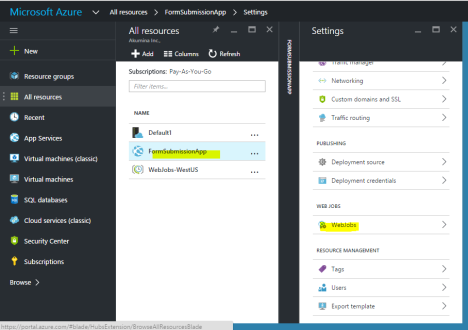
- Create a Web Application on Azure (App Service on new Azure Portal) – use the one that already exists for hosting Interchange
- Go to WebJobs and Add a new web job
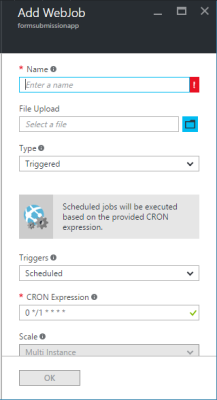
- Specify the Web Job name, upload .zip file of the console app debug directory, set type to “triggered” and set the schedule using CRON expression, Click OK. The example below will execute every minute. (0 */1 * * * *)
Use this document to configure background processor to use OAuth Tokens instead of username/password-based credentials. In addition to background process, OAuth tokens used to control admin level functionalities such as workflow, query list of sites, etc., As of this writing (release 4.0 patch2) the following keys are required inside ~/interchange.settings.config
The following 2 keys will be added to the interchange.settings.config
To restrict the user to set the OAuth Token you may follow the convention of the key as shown below
For example
- Log in to AppManager, as the Site Collection Administrator or Owner on site this user must have the same user permissions as the old Background Processor User.
- Click on GEAR (/admim/console).
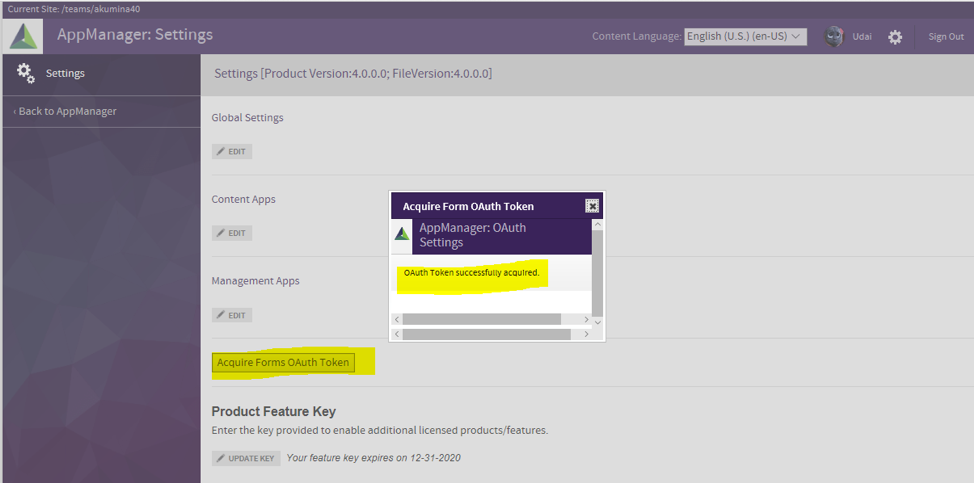
- By clicking on “Acquire OAuth Forms Token” button you confirm that your current logged in user’s authorization will be used to execute all forms-based queries such as add/remove Akumina forms and supported features including start/stop Akumina workflow events.
- If the token successfully acquired, then you will see the following confirmation
 How the Token acquiring process works
 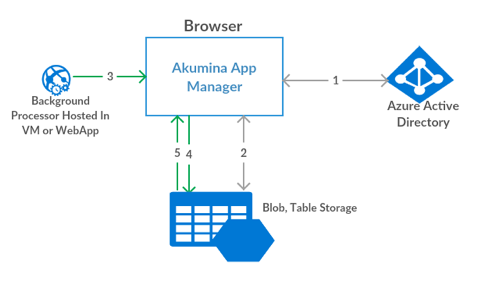 On the Image Above
- “Acquire OAuth Forms Token” – click to acquire token
- Token stored into Azure Table (Secured by Client-Side and Server-Side encryption with custom key)
- Background Processor requests to AppManager (Continuous polling)
- AppManager requests to Table storage for an acquired token, if the token is valid, a request made to Azure Active directory for an access token to process the data. The newly acquired token is also updated in Azure table storage.
Things to Know:
- A lifetime of the token varies from 90 days to 365 days, but this token can be updated or revoked any time.
- Manually updating token using “Acquire OAuth Forms Token” button is required every 90 days to 365 days.
Note: If you see this error in the forms processor:
5.2.0 STOREDRV.Submission.Exception:SendAsDeniedException.MapiExceptionSendAsDenied;
Failed to process message due to a permanent exception with message Cannot submit message.
Update the Global Settings in App Manager, and configure System Email field. It means the RELAY has blocked the FROM Address which is what this field defines.
This is only an issue when using: