
The Following Instructions are for setting up the AppManager website files for On-Premises:
Login to your AppManager Web Site Hosting Server as Administrator
From the Windows Start menu, open IIS as an administrator.
IIS Authentication changes
First in IIS, the Authentication settings for the AppManager website must be set like this: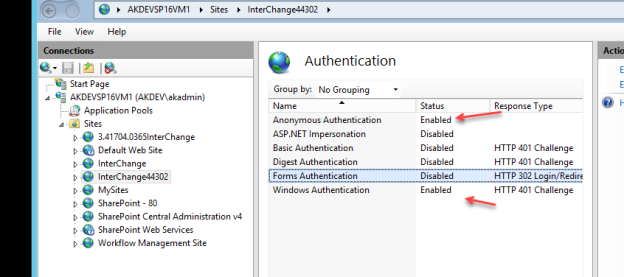
AppManager web.config file changes
- Edit the web.config file and find the section highlighted in grey below

Add the following lines AFTER the lines highlighted in grey:
The result should look as follows: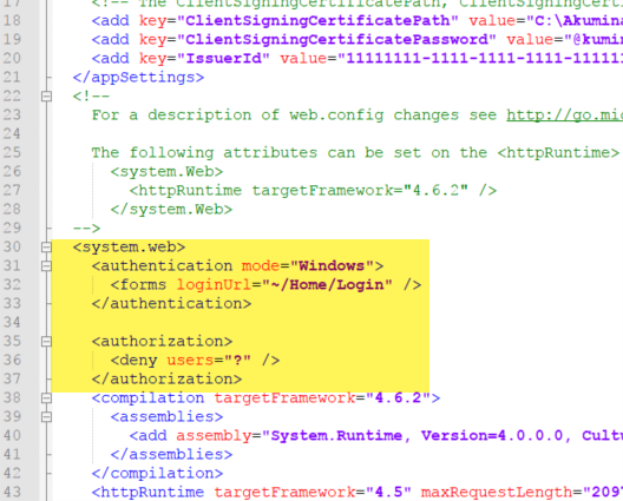
2. Next, ADD the following lines to the web.config AFTER the line
Enabling “My Apps” Functionality
If your organization is going to enable the “My Apps” functionality, there is an additional setting required:
Access the “DigispaceConfigurationIDS_AK” list and set the “LOADER_STEPS_ENABLE_FETCHSPGROUPS” key to “true”