
Akumina has introduced changes to the Broadcast Center
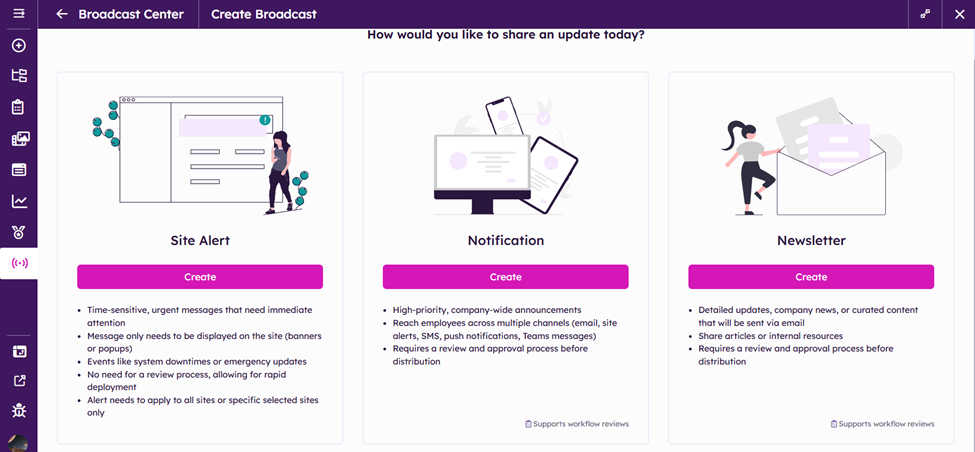
Click Create under the Site Alert option
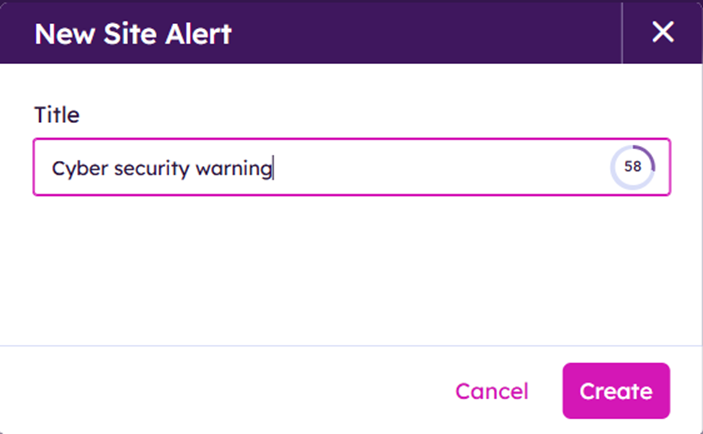
Type in the Alert’s title (up to 80 characters)
Click Create
Specify Site Alert’s recipients
Choose from:
- Azure Active Directory Groups
- Akumina Personas
- Specify individual uses or upload a CSV file
- Query Builder
- Everyone
Shown bellow is example of individual users
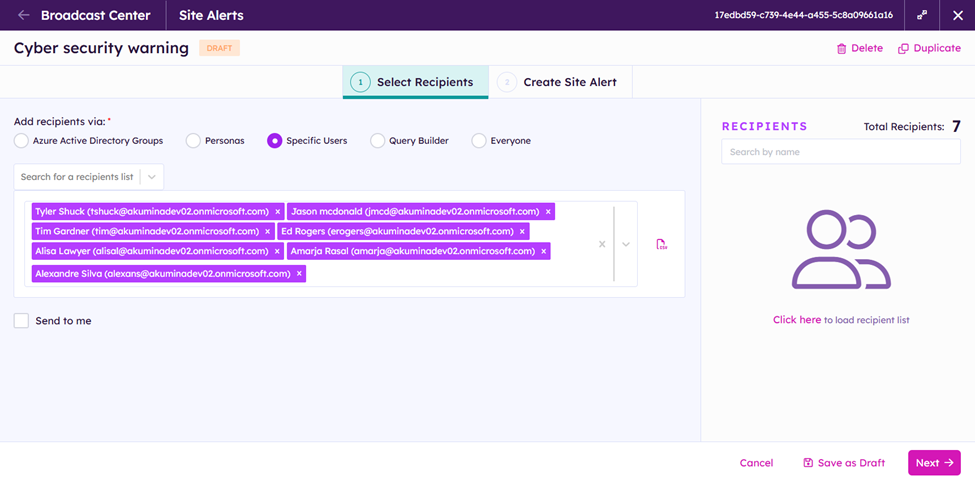
Click Next
Create Site Alert Message
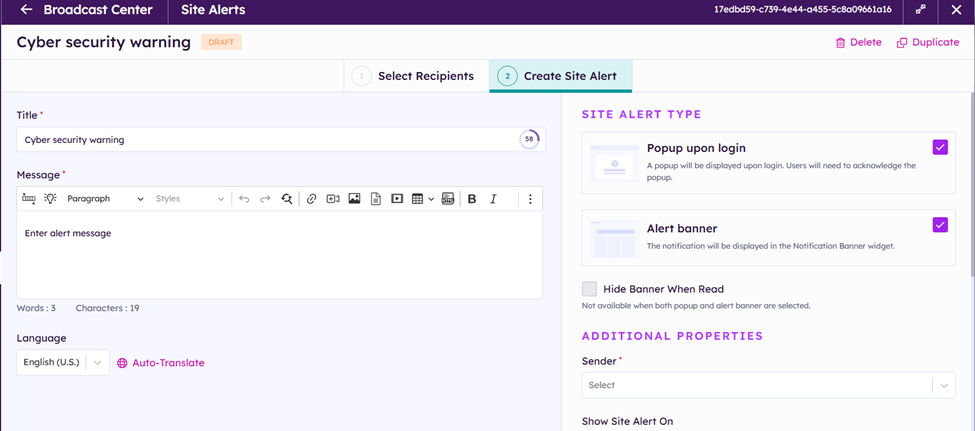
If you want to send the message in multiple languages toggle between languages or click Auto-Translate
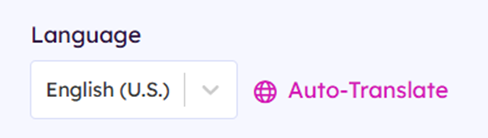
Select desired languages for translation
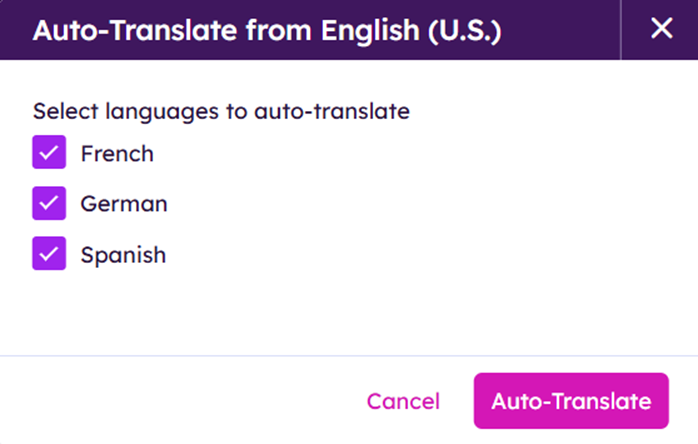
Click Auto-Translate
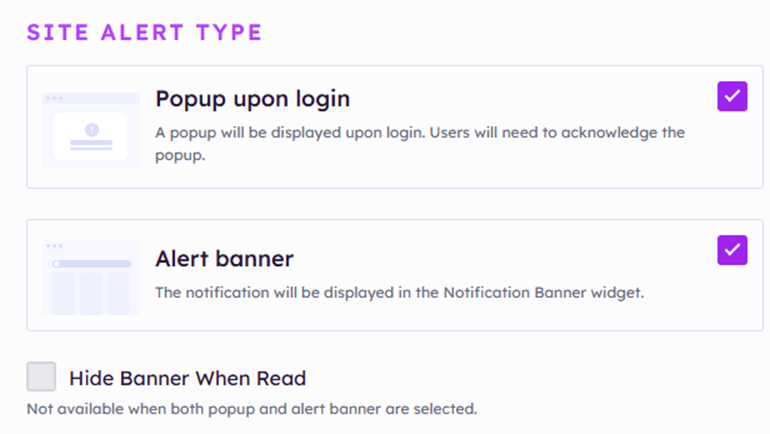
Underneath Site alert Type:
Select one or more Site Alert types
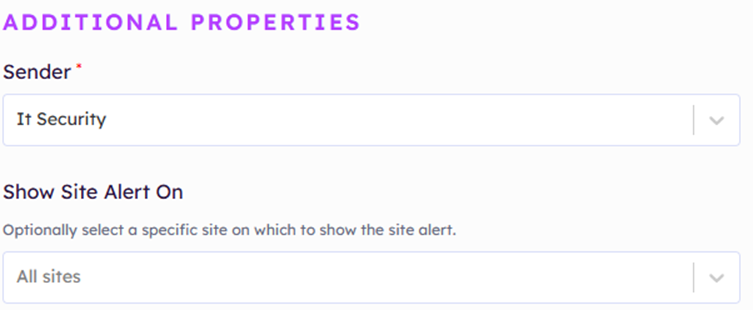
Choose the Site Alert’s Sender from a dropdown menu
Choose All Sites or Specify a Site to display site Alert on from a dropdown menu
Decide when the Alert will be sent out:
Select immediately to get the Alert out now

Select Scheduled to specify day and time to send Alert
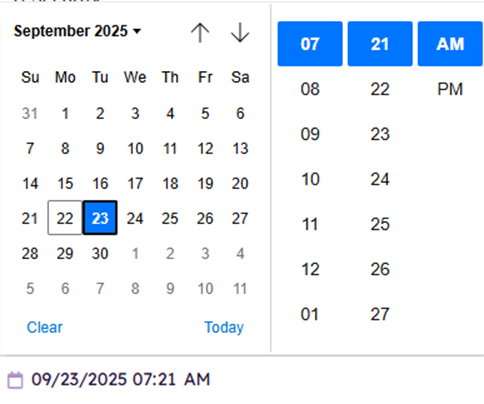
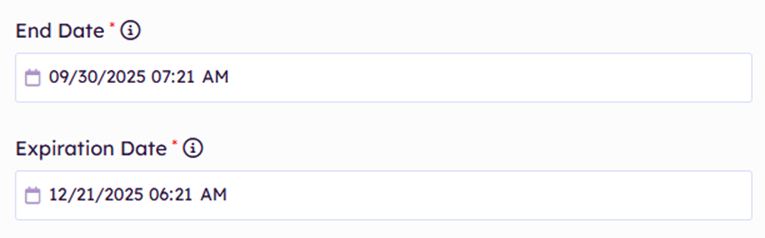
End Date:
Determines when the Alert will be removed from the site.
Click on the calendar icon

Expiration Date:
Determines when the Alert notification will be permanently deleted
Click on the calendar icon

Save as Draft or Submit message
-
Save as Draft will save your message for later user
-
Submit will initiate the Site Alert process

When finished your screen will look like this:
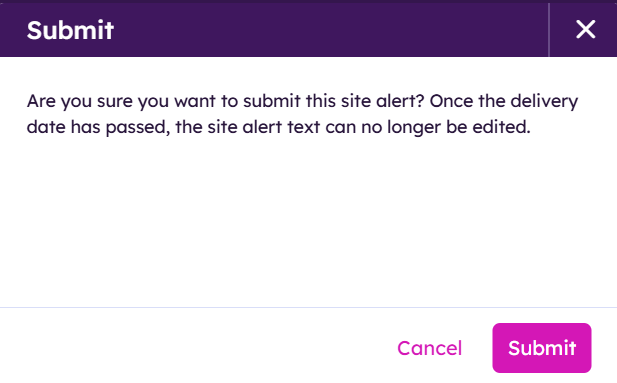
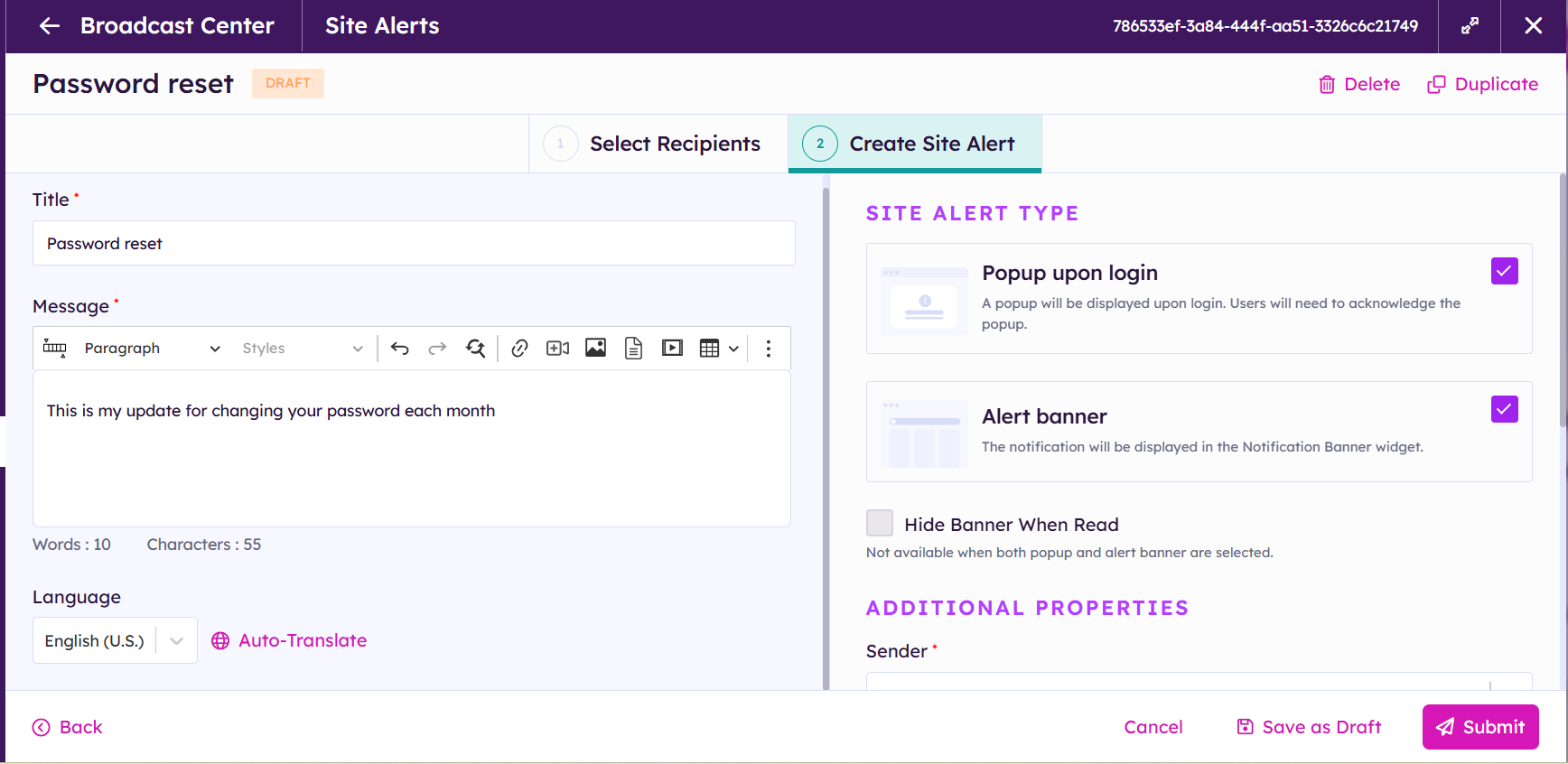 Click Submit
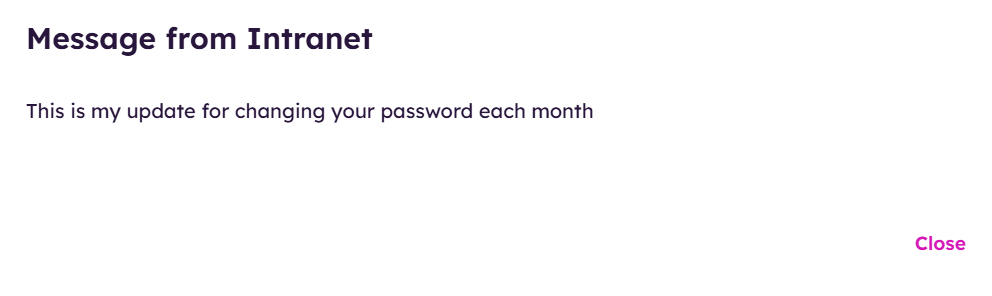
Example of the site alert:

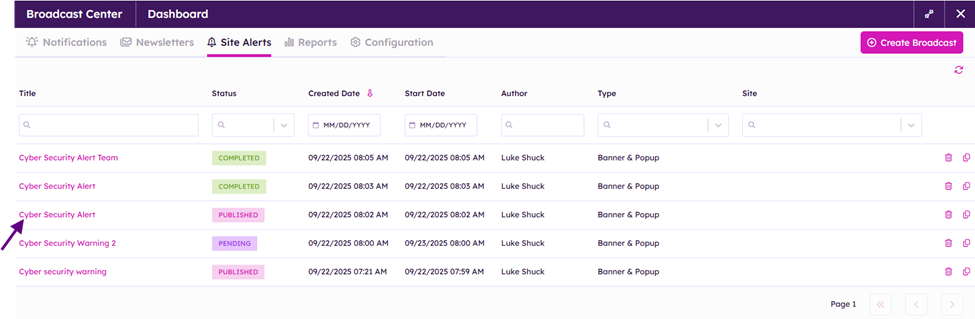
If you need to end the published message before the end date click on the published site alert
Click on End Site Alert at bottom right corner of your window

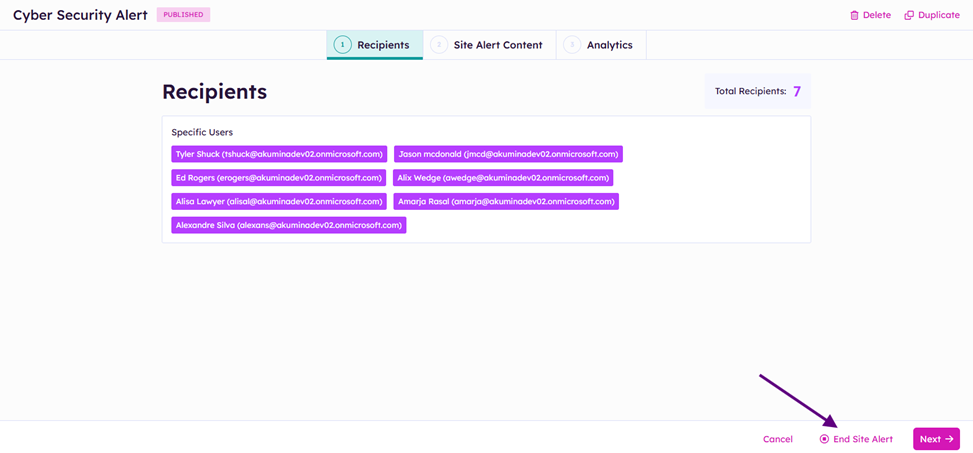
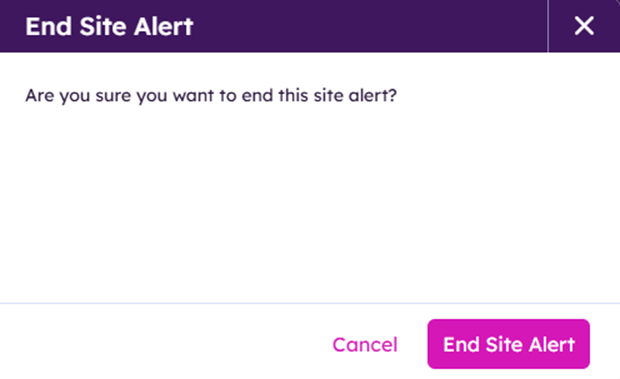
Click End Site Alert
The Site Alert will be removed from the Site and marked as completed in the Broadcast Center Interface
