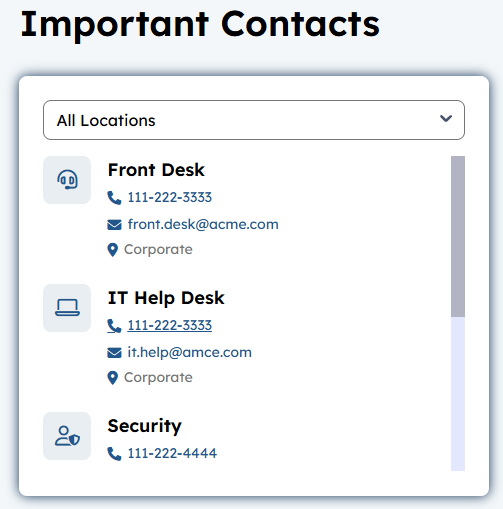
Important Contacts Widget
Purpose
As an employee I need to quickly access important contact to at a optional location, to access the right people for thing like:
-
- Front Desk – Contact to to allow a visitor into the building
- Security – Contact to report a security issue
- Janitorial – Contact to report a building issue example broken pipe in the rest room
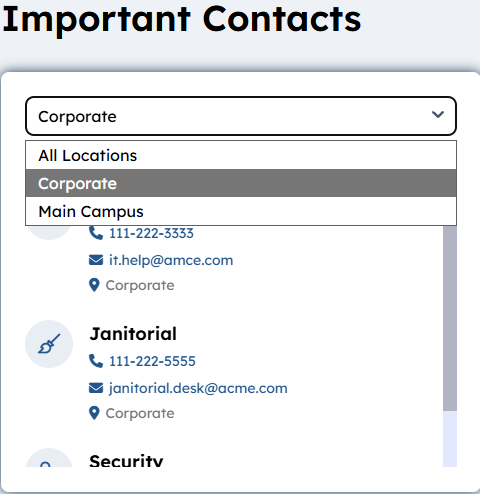
Each contacts may be assigned a location e.g. “West Building”, “East Building” … allowing the contacts to be sorted by location. In the example below we have location Corporate and Main Campus.
Below is an example of Contacts that are sorted alphabetically by location (controlled by choice field) and then alphabetically by Title. “All Locations” displays all the contacts in the supported “Structure Content” > Component, supported SharePoint list.
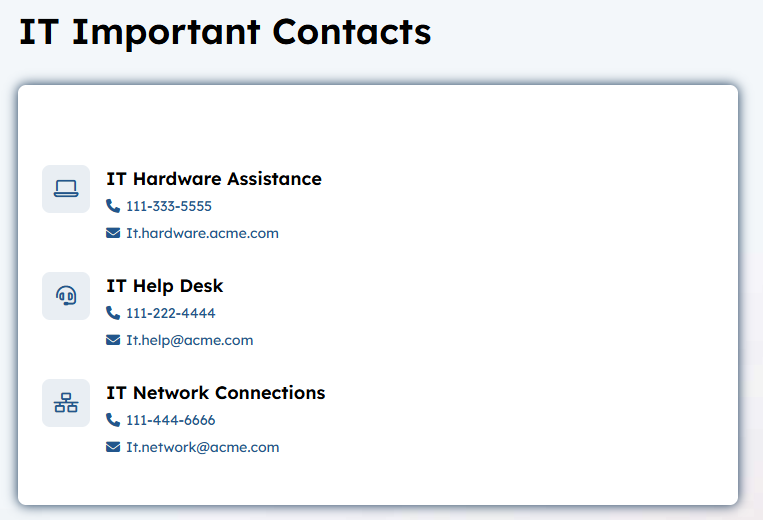
Below is an example to the Same widget on the IT Department Landing Page. In the example below there is not location set in the “Structure Content” > Component.
Features
-
- Display Contacts sorted by their location and then alphabetically by the title of the item in the location.
- Display a Font-Awesome icon to associate with the “Important Contact. To do this on the Structured Content > Component set IconName = user-shield (font-awesome title).
- Display and Sort by Title example “Security”
- Display a phone number to contact
- Display an email to contact
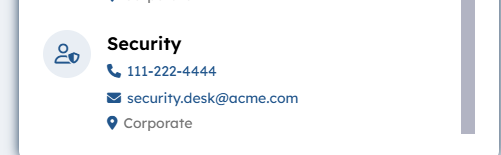
- Display a location (if set).
Below is an example of one Important Contact item
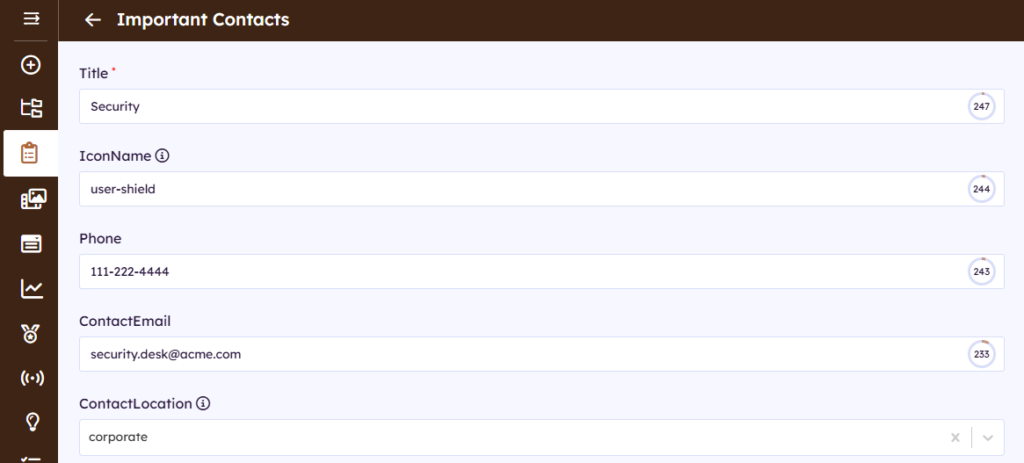
Which results displays this item displaying on Important Contacts:
-
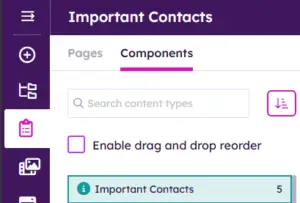
- OOTB “Structured Content” > Component > Important Contacts is where you manage the Home Page “Important Contacts”
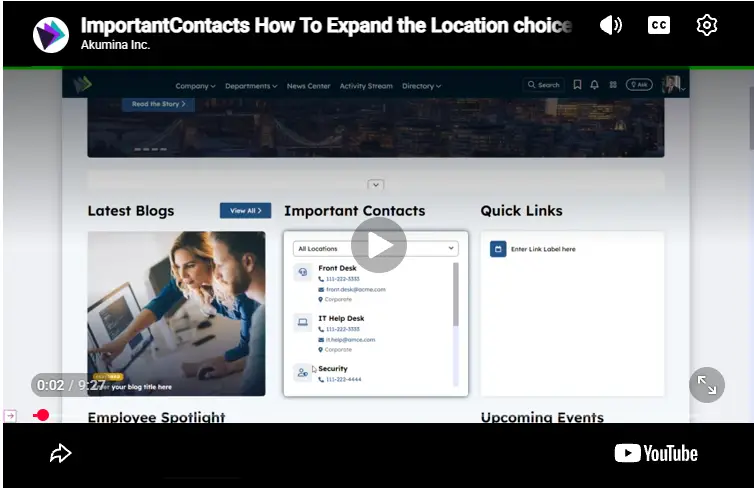
The input fields for Important Contacts has a choice dropdown to set the location that is expandable please watch the video below to learn more about expanding or removing locations from Important Contacts.
Details
-
- Widget Name: ImportantContactsWidget
- Available With: Release 7.0.2602.0321
- Content App Type: Authoring, Structured Content – Component
- Content Type: AkuminaImportantContacts and AkuminaLanguage
- Content App Name: Important Contacts
- List Name:ImportantContacts_AK
- Recommended Fonts: https://fontawesome.com/ titles for icons
- Dependencies: N/A
Content
| Title | Label of Important Icon example: Security |
| IconName | Font Awesome Icon Name visit here to pick a name. |
| Phone | Phone number that will display for the Contact |
| ContactEmail | Email address displayed for the important contact when selected, your email app will open with the address prepopulated. |
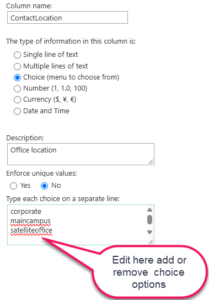
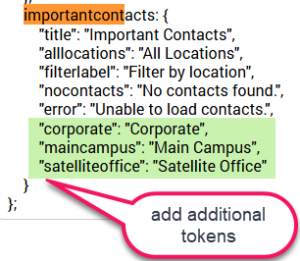
| ContactLocation | This is a choice dropdown of language tokens so that this will display in multilingual sites correctly. To expand the CurrentLocations or remove them options, visit the supporting SharePoint List, “List Settings”. Edit the column ContactLocations and add or remove choice options keeping them all in lower case no spaces. Visit the AppManager, navigate to the central site, “Management Apps” “Language Manager”, edit the Language files for each of your sites languages and add the additional translations example:
Below is where you update language tokens for Multilingual.
|
Properties
| Display Title | For a multilingual site this would be a token variable example:
{importantcontacts.title} additional tokenized titles can be added to the language files or to manage what displays for this token visit the App Manager > Central Site > Management Apps > “Language Manager”. If the site is not Multilingual then a title could be literally enter here example “IT Contacts”. |
|
| List Name | Name of the SharePoint list that contains the data to be displayed for this widget instance ImportantContacts_AK | |
| Selected list columns | ID,Title,IconName,Phone,ContactEmail,ContactLocation | |
| Site Collection URL | Site collection URL where the SharePoint list defined in “List Name” can be found. | |
| Cache Interval |
|
|
| Function to call after fetching data | OOTB -Blank (used for widget expansion): Name of the function called after data has been fetched by the widget. | |
| Funtion to call before binding the UI events | OOTB -Blank (used for widget expansion): Name of the function called before the UI has been rendered to the screen |
Views
View Name: Contacts List
View Description: Display Important Contacts sorting by Location (Optional) and then by Title of Contact
View Preview: