Employee Spotlight Widget
Purpose
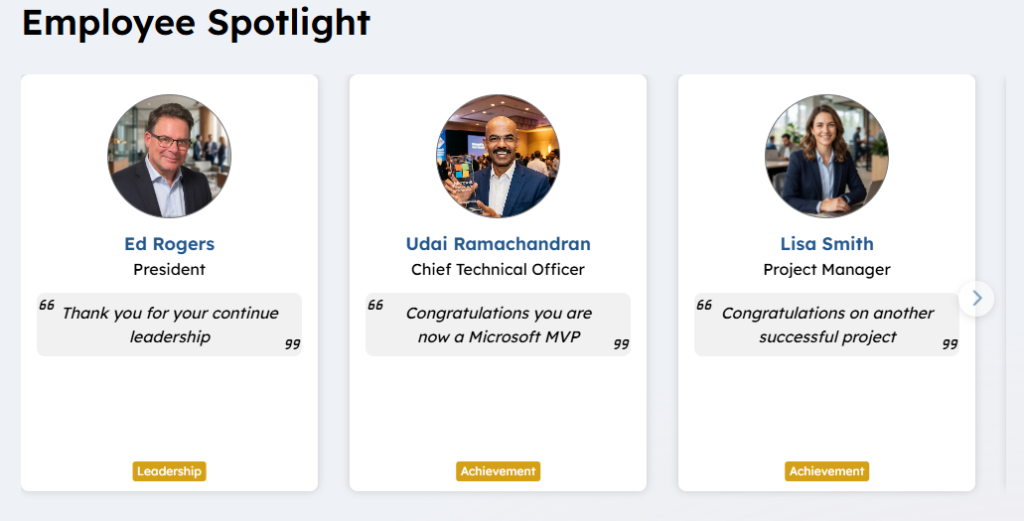
Displays Key Contact Employees in a slider card or listing view with links to full employee profile detail page. Tags as seen below “Leadership, “Achievement” (many exist and are expandable)… can be assigned to a Employee’s tile for display. A friendly message can be added for each employee. Click on the Employee tile and navigate to their employee detail page to learn more about the highlighted employee.
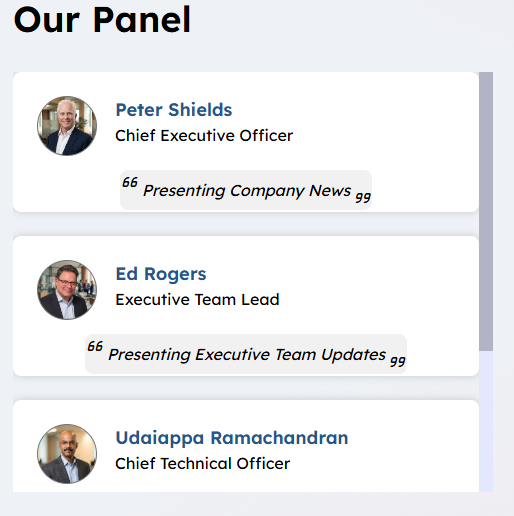
Below the Employee Spotlight Widget is being leverage to present a group of Employees who will be presenting at Corporate Event. The message displayed for each user reflects what they are presenting. There could be tags such as Leadership appointed to the user or not.
Features
- Displays Structured Content > Component, list of employees to highlight for any purpose.
- Displays a profile image, user name, job title, message and optional tag for each user.
- Each tile links to the employee’s detail page where the user can learn more about the selected employee.
- The Order in which the users are displayed is managed in the Structured > Content > Component via a slider
- A user tile can quickly be pulled out of the live view by moving the user tile into the Structured > Content > Component slider to a deactivated state or deleting them from the list.
Details
- Widget Name: EmployeeSpotlightWidget
- Available With: Release 5.5 Hive Install and above views via version 7.0.2602.0321
- Content App Type: Slider (Working With Slider Type Content Apps)
- Content Type: N/A
- Content App Name: Employee Spotlight
- List Name: EmployeeSpotlight_AK
- Recommended Images Sizes: N/A
- Dependencies: People Sync, Azure Active Directory, SharePoint User Profiles
Content
| Title | Title that displays in the content app item list |
| FeaturedPerson | OPTIONAL – Displays the name of the person that you pick to highlight from your company directory, the users Job Title will come from featured person unless it is overwritten by “Job Title” in this content item. FeaturedPerson is required to link to the employee detail page, if is is not set then this tile will not link. |
| ImageUrl | Allows you to upload an image if the user doesn’t have a profile image or if their profile image is not preferred. The default “doh-boy” image will display if the user does not have a profile image and if ImageUrl is not set. |
| DisplayMessage | Message displayed under the highlighted user job title.
Not available on view EmployeeSpotlight or “Key Contacts” example from grid view above
|
| Job Title | Displays employees job title under their name it will overwrite the value returned as their job title from FeaturedPerson. |
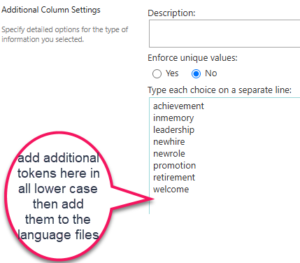
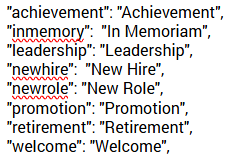
| SpotlightType | This is a choice selector that is pre-populated with language tokens
These tokens get translated by the language token files in your site. To expand visit the supporting SharePoint list, list defintion for column SpotlightType, add additional choices then visit the AppManager > Central Site > Management Apps > Language Manager and search for employeespotlight and add additional translations to each of your language files.
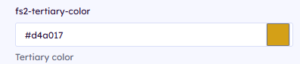
This field is optional if no SpotlightType is set then the tags will not display. The tags e.g. “Leadership” displays on the employee card in the sites tertiary color configured in the site “Theme Manager”.
Not available on view EmployeeSpotlight or “Key Contacts” |
| LinkedIn Link | Displays LinkedIn Icon on card. Navigates to users LinkedIn account URL. – This is only supported on view EmployeeSpotlight or “Key Contacts” |


Properties
| Displayed Title | This of the widget this could be a language token OOTB set to:
fs.employeespotlight.employeespotlight = Employee Spotlight additional tokens can be added to your site or a literal could be enter if translations are not required example: “Our Panel”. |
| Select List Columns | The data fields (columns) from the SharePoint list that the widget should retrieve for use in this instance.
Title,DisplayMessage,FeaturedPerson,JobTitle,ItemOrder,ItemActive,SpotlightType,ImageUrl |
| Cache Interval | Sets the time, in seconds, that the data should be saved in the local browser cache of the current user.
Whole Number = Cache for specific time, in minutes |
| List Name | Name of the SharePoint list that contains the data to be displayed for this widget instance. example “EmployeeSpotlight_AK”. |
| Filter | N/A (used for widget expansion) |
| Function to call after fetching data | OOTB -Blank (used for widget expansion): Name of the function called after data has been fetched by the widget. |
| Function to call before binding the UI events | OOTB -Blank (used for widget expansion): Name of the function called after the UI has been rendered to the screen |
| Is Dept Specific | Used to identify a department root instance which is displayed on home site (homepage) using the department summary widget. |
| Site Collection URL | Site collection URL where the SharePoint list defined in “List Name” can be found other than this specific site in this case BLANK. |
| List is on Root Site | When checked, the widget references the list on root site. |
| Site Owner | Only check this if you want this instance to be a Site Owner version. |
| Is Department Specific | N/A for expansion. |
| Site Owner | Only displays the first person in the slider.
This is only supported on view EmployeeSpotlight or “Key Contacts” |
| Count | Number of employee item cards will display on in the widget; defaults to 16 this is supported in views EmployeeSpotlight or “Key Contacts” other views will scroll or slide. |
Views
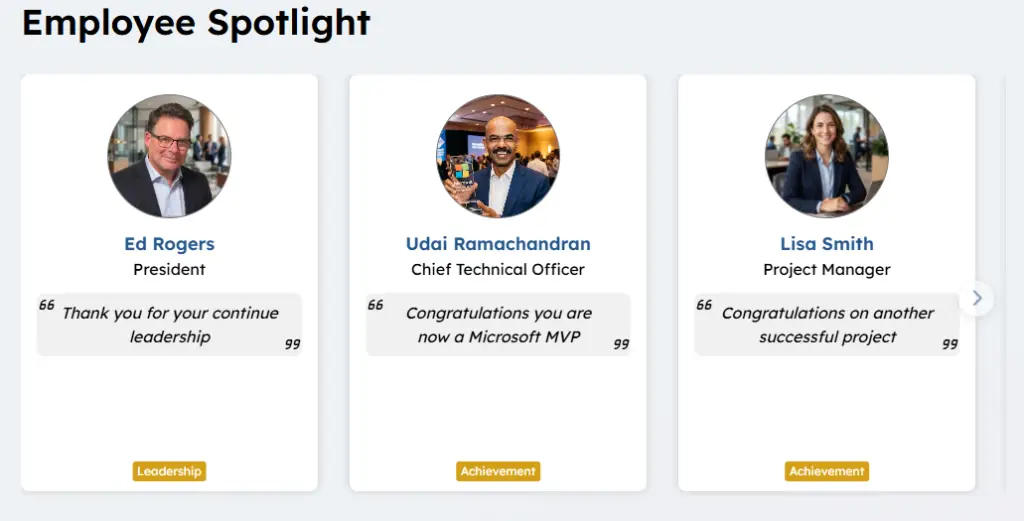
View Name: Employee Spotlight Slider
View Description: Displays Key Contact Employees in a slider.In this view the profile images will appear round or square depending on the value set in the theme manager for the site it will match all the profile images style through out the site. below is an example of the profile set to round.
View Preview:
View Name: Employee Spotlight Listing
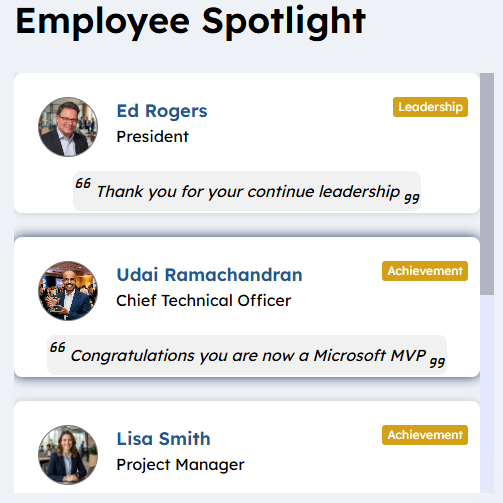
View Description: Displays Key Contact Employees in a scroll list. In this view the profile images will appear round or square depending on the value set in the theme manager for the site it will match all the profile images style through out the site. below is an example of the profile set to round.
View Preview:
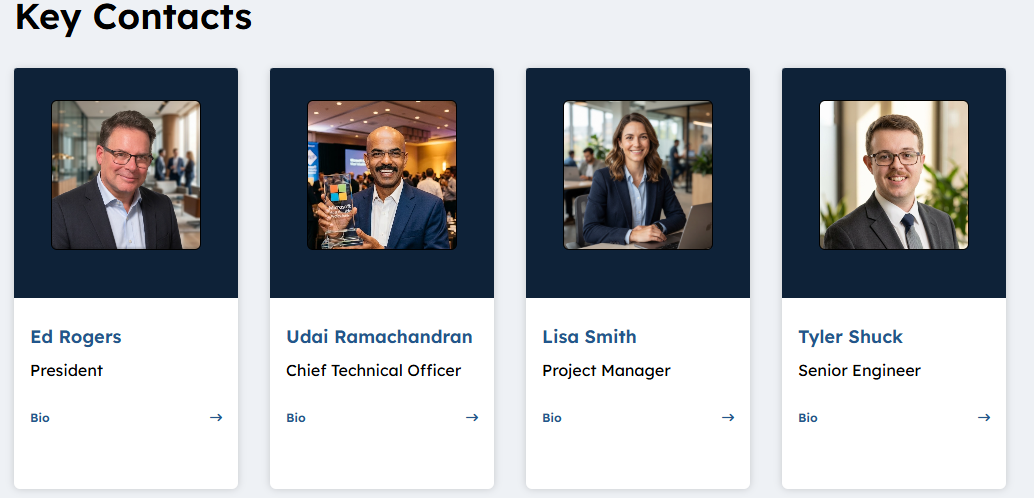
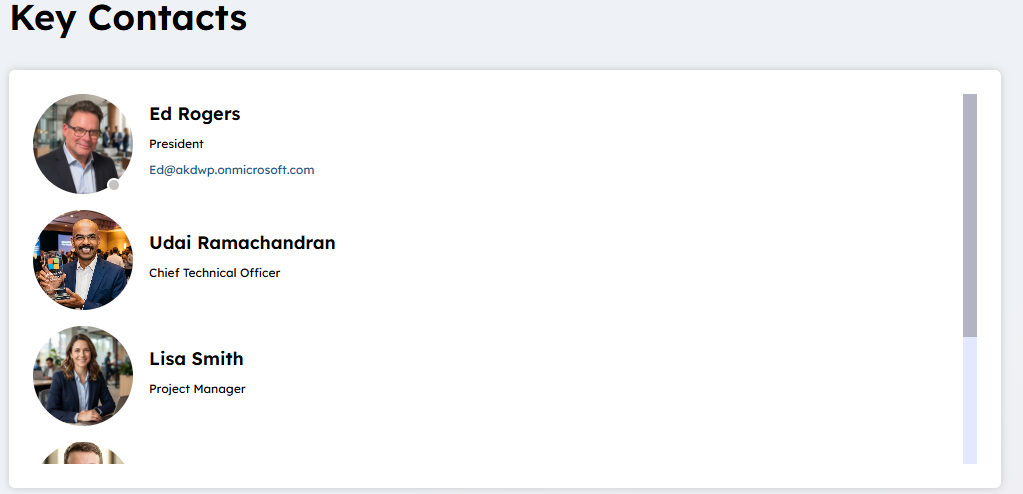
View Name: Key Contacts
View Description: Displays Key Contact Employees list. In this view the profile images are always round. Click on the user’s email address to navigate to the employee detail page. The title of the widget is a language token in the view. Does not display the “DisplayMessage” or the Spotlight Tags.
View Preview:
View Name: EmployeeSpotlight
View Description: Displays Key Contact Employees cards without slider the number of items in the list or the max set on the widget property will display. below is an example if there was only four employees in the list. In this view the profile images are always square and click on Bio to link to the employee’s detail page. The title of the widget is a language token in the view. Does not display the “DisplayMessage” or the Spotlight Tags.
View Preview: