Event Detail Widget
Purpose
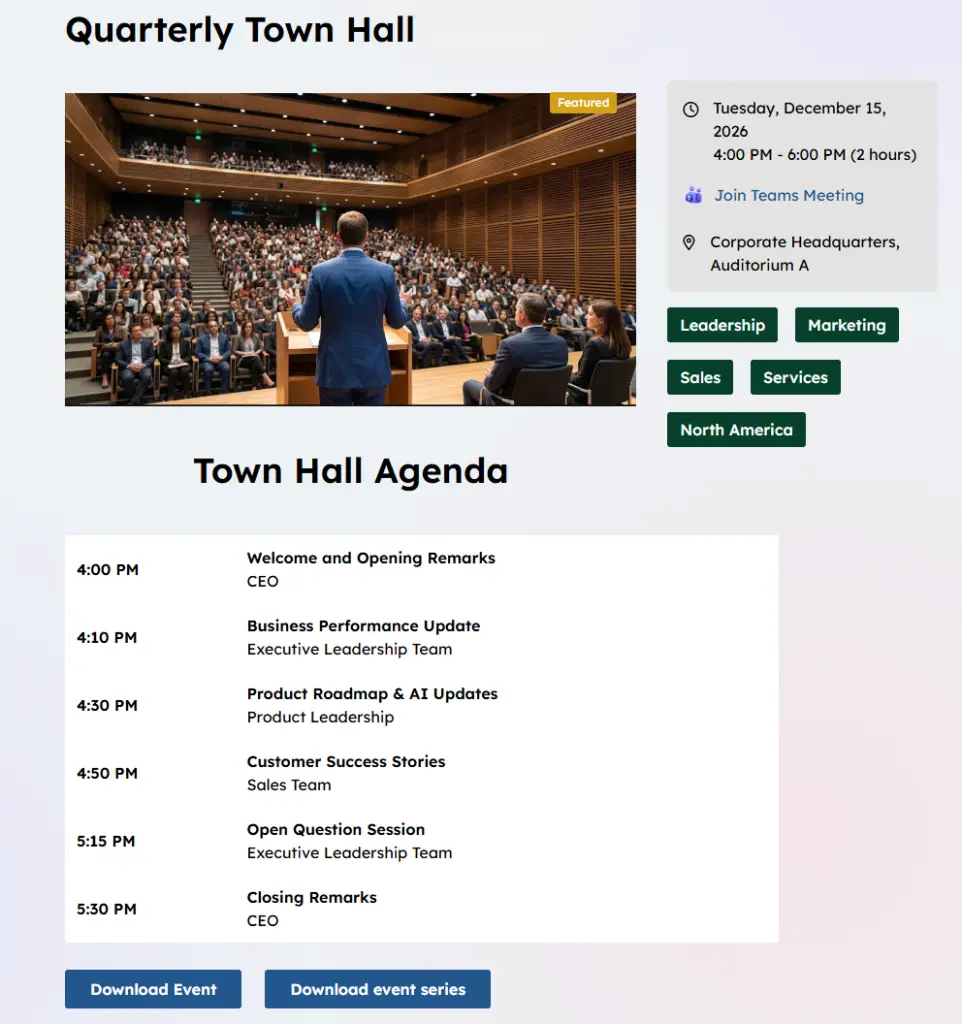
Displays the Event detail from a selected calendar event. This widget can be used to display details from historic Akumina calendars as well as the latest AkuminaCalendars.
Features
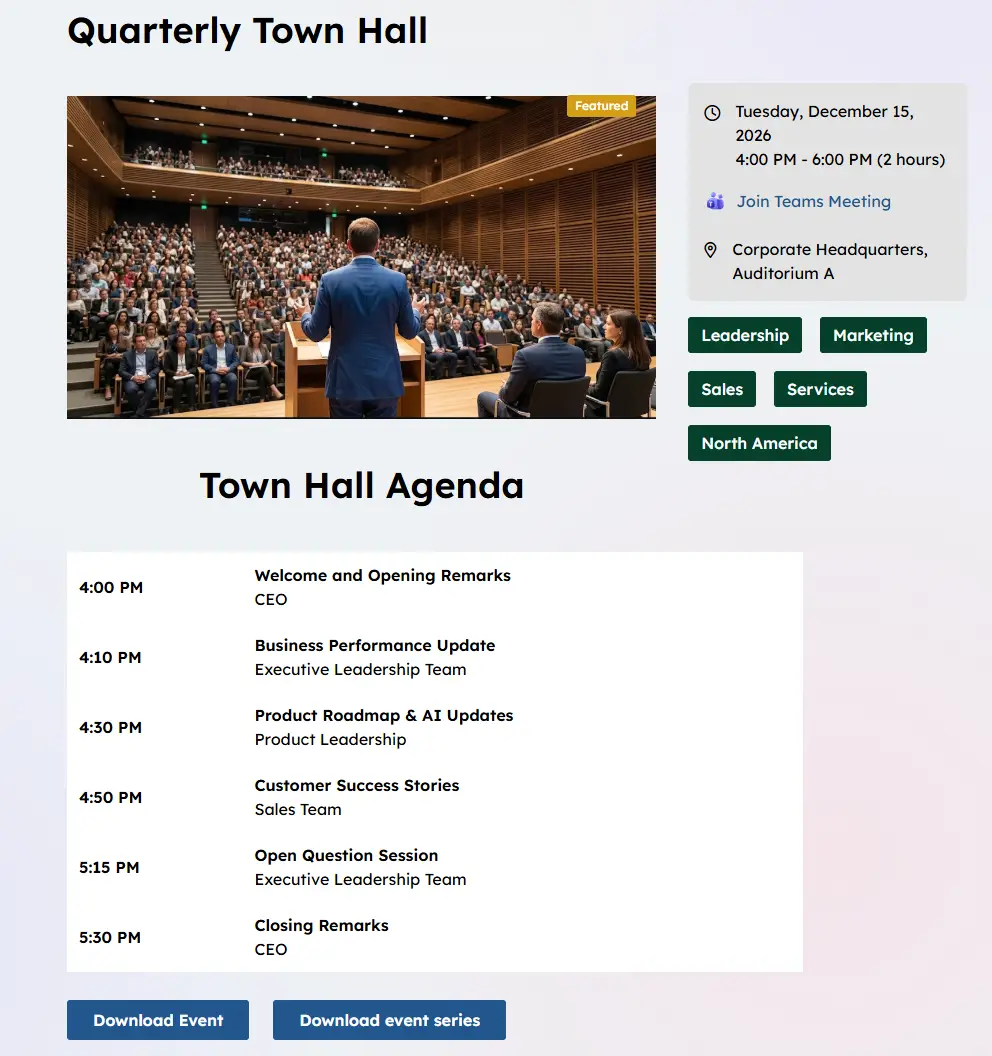
- Displays the selected calendar event details including the event title or Title, description, date/time, location, metadata tags, and provides a button to download the event to add to your local outlook calendar.
- Calendar event details are most often used in conjunction with the EventsWidget or the SingleCalendarWidget.
- Support .ics calendar format download of an event to add to calendars such as Outlook
- Items displayed are security trimmed based on specific site user’s SharePoint permissions or event more by “Persona”.
- Mobile-ready via Responsive Web Design
Details
- Widget Name: EventDetailWidget
- Available With: Release 5.5 and above.
- Content App Type: Authoring, Pages. Data comes from the configured Calendar which is supported in a “Structured Content” > Pages
- Content Type: AkuminaCalendar, AkuminaPersona, AkuminaSearch, AkuminaLanguage
- Content App Name: Events
- List Name: Calendar_AK
- Recommended Images Sizes: N/A
- Dependencies: SharePoint Event Content Type.
Times based on the user’s SharePoint time zone. If the user’s time zone is set to ignore, then the user will use the site’s regional SharePoint time zone setting.
Content
The Content displayed on this widget is populated by Content that has been created as “Structured Content” > Pages from AkuminaCalendar content type. Highlighted in BOLD are the columns displayed on the EventDetailWidget.
| Title | Title of the calendar event in the Event Content App list |
| Location | Display under the time of the event and any meeting links
|
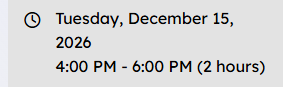
| Start Date | Date and time that show up on event detail example: 4 pm is the start time and 6 pm is the end time example: This will be the date and time that downloads in the *.ics file.
|
| End Date | Date and time that show up on the detail and will also be the end time found in the downloaded *.ics file. |
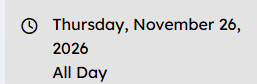
| All Day | If selected the the event will as all day
|
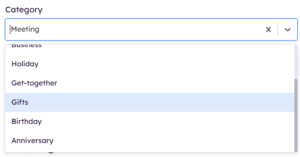
| Category | N/A on this Widget – They are only used as filters on the SingleCalendarWidget. These are SharePoint “Event” Content Type categories the options are :
Meeting Work hours Business Holiday Get-together Gifts Birthday Anniversary
This can be used on this widget to Filter Events if configured on the widget property.
|
| Description | Optional event description – N/A for this widget |
| StaticUrl | What will be added to the site Url to create the friendly Url for the news article |
| FriendlyUrl | This is a calculated field based upon the site you are viewing the content. It is used to populate FriendlyUrlSearch. After Save this field is what you copy and past into a quicklink type app to add the article to the site navigation. |
| FriendlyUrlSearch | AkuminaSearch Content Type MUST be added to all “Structured Content” > Page supported list. This field is used to auto navigate by widgets such as Search, EventDetailWidget
After the article has been SAVED this field will be auto populated. It is hidden. |
| Featured | When checked, event is shown as a featured event and shown with a featured tag highlighted in the sites tertiary color. |
| Body | Text that displays in the Event Details as the body of the event. |
| EventTitle | If this is set then it is the Title to display as the Event Title and displayed this is optional and here for historical reasons. |
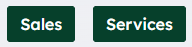
| Tags | Allows you to specify Tags associated with the event – will display on this widget:
If you don’t want Tags then just input what metadata columns to display on the widget property
|
| Departments | Allows you to specify Departments associated with the event – This will display on this widget unless using the widget property it is excluded.
|
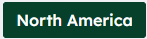
| Region | Allows you to specify Regions associated with the event – This will display on this widget unless using the widget property it is excluded.
|
| Meeting URL | Displays meeting link if this set for this calendar item
|
| Thumbnail URL | Allows you to specify an associated image and image description. – example:
|



Properties
| List Name | SharePoint list to read the data from to display |
| Selected list columns | Columns in the SharePoint list that the widget is utilizing on the view:
ID,Title,Body,Tags,Region,Departments,EventDate,EndDate,Featured,Location, Meeting_x0020_URL,fAllDayEvent,fRecurrence,RecurrenceData,Duration,XMLTZone, Thumbnail_x0020_URL,Description,FriendlyUrl |
| Calendar Link | N/A on this view available for expansion |
| Use Friendly Url | Using the friendly Url pull in the detail information |
| Taxonomy Columns | OOTB BLANK – If this is BLANK then it will assume Departments,Region,Tags. You could exclude metadata columns by updating this to just Tags then only Tags will display on the detail. If you are using historic Akumina Calendars then you could put Category here to pull in those metadata tags. |
| Function to call after fetching data | OOTB -Blank (used for widget expansion): Name of the function called after data has been fetched by the widget. |
| Function to call before binding the UI events | OOTB -Blank (used for widget expansion): Name of the function called before the UI has been rendered to the screen |
| Site Collection URL | Site collection URL where the SharePoint list defined in “List Name” can be found. |
Views
View Name: CalendarDetail
View Description: Displays the Event detail from a selected calendar event. This include the event title, description, date/time, location, category tags, and provides a button to download the event to add to your local outlook calendar.
View Preview: