
Launch Pad Widget
Purpose
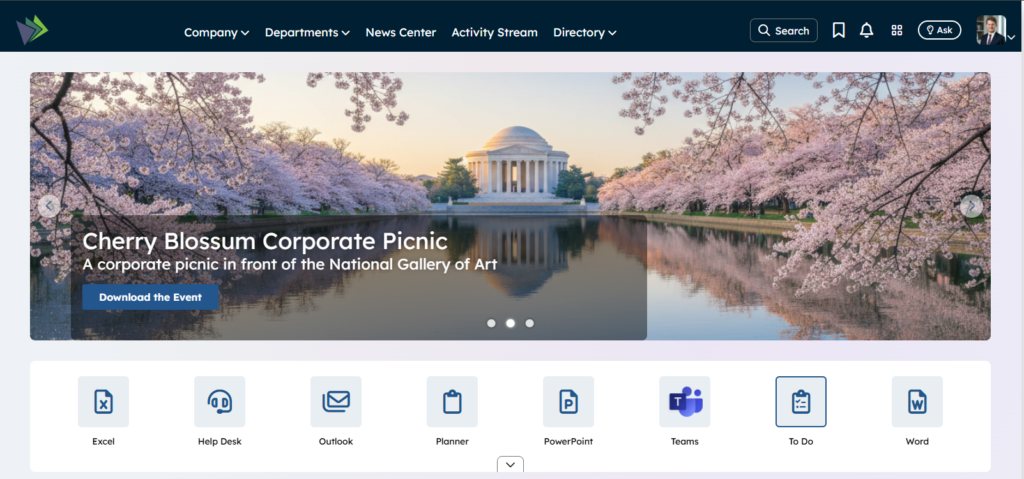
Display the user’s preferred set of corporate available Apps in a slider on Connect sites on the Home page and the Dashboard page or where ever you would like to have these apps Available. The App “Font Awesome Icon” or Image, link and whether the App is required by Corporate is managed in the supporting “Structured > Content > Component” called “My APPs”. This widget allows each user to quickly access those apps that they have permissions to. If I am an unlicensed user (no office 365) I would not want to have things like word or excel displayed on my apps. by click on the  accordion expander the logged in user can manage what apps will appear on their launch pad apps.

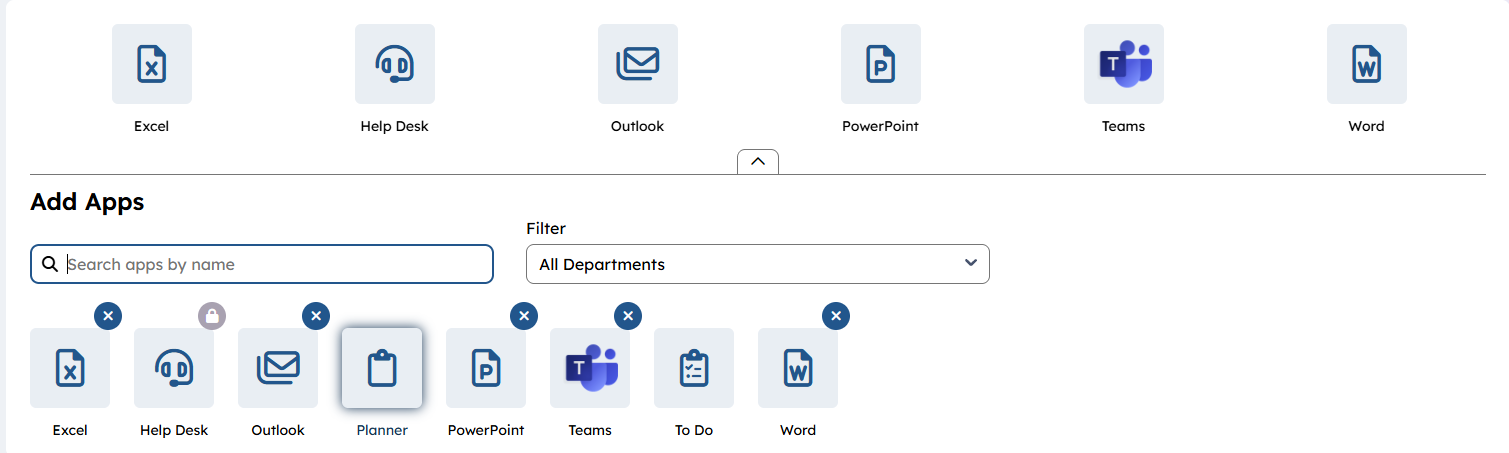
Below is an example of the expanded accordion (configurable to allow for management) some clients have close to 100 available apps, there is a search to find the App that you would like to add. Apps can be sorted by Department to locate them and they can be prefiltered out based upon a user Persona. For example a persona could be created for everyone in Finance lets call it FinancePersona. Apps that are only applicable for people in Finance can have the FinancePersona applied to it so that only that group of users will have access to the apps and see those apps. Click on an app will make it appear on your slider in alphabetical order.
Features
-
- Display a list of user selected apps and corporate mandated apps
-
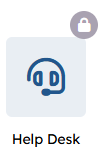
- Apps with a lock displayed indicates the App is mandated by Corporate and will always display them in their App Slider.
-
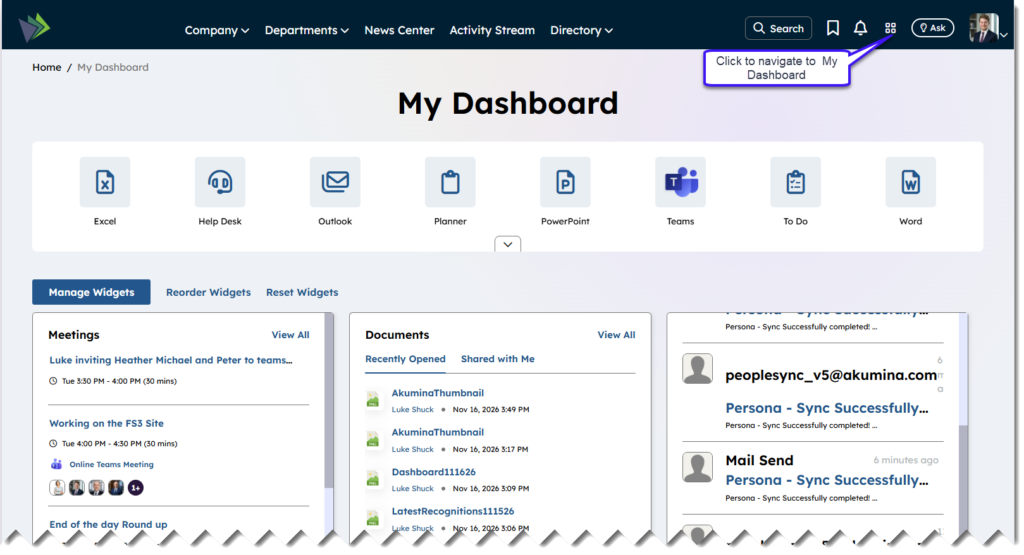
- Ability to add Apps for users to customizer their list of Apps to display on the Launch Pad found often on the Home page, the Dashboard page and in earlier versions on mission control
- Display a list of user selected apps and corporate mandated apps
-
- Ability to search for an App to add it to your launchpadwidget
- Ability to manage the list of permissioned Apps displayed for all users in a “Structured Content” > Component > My Apps
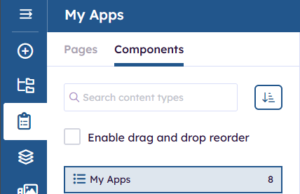
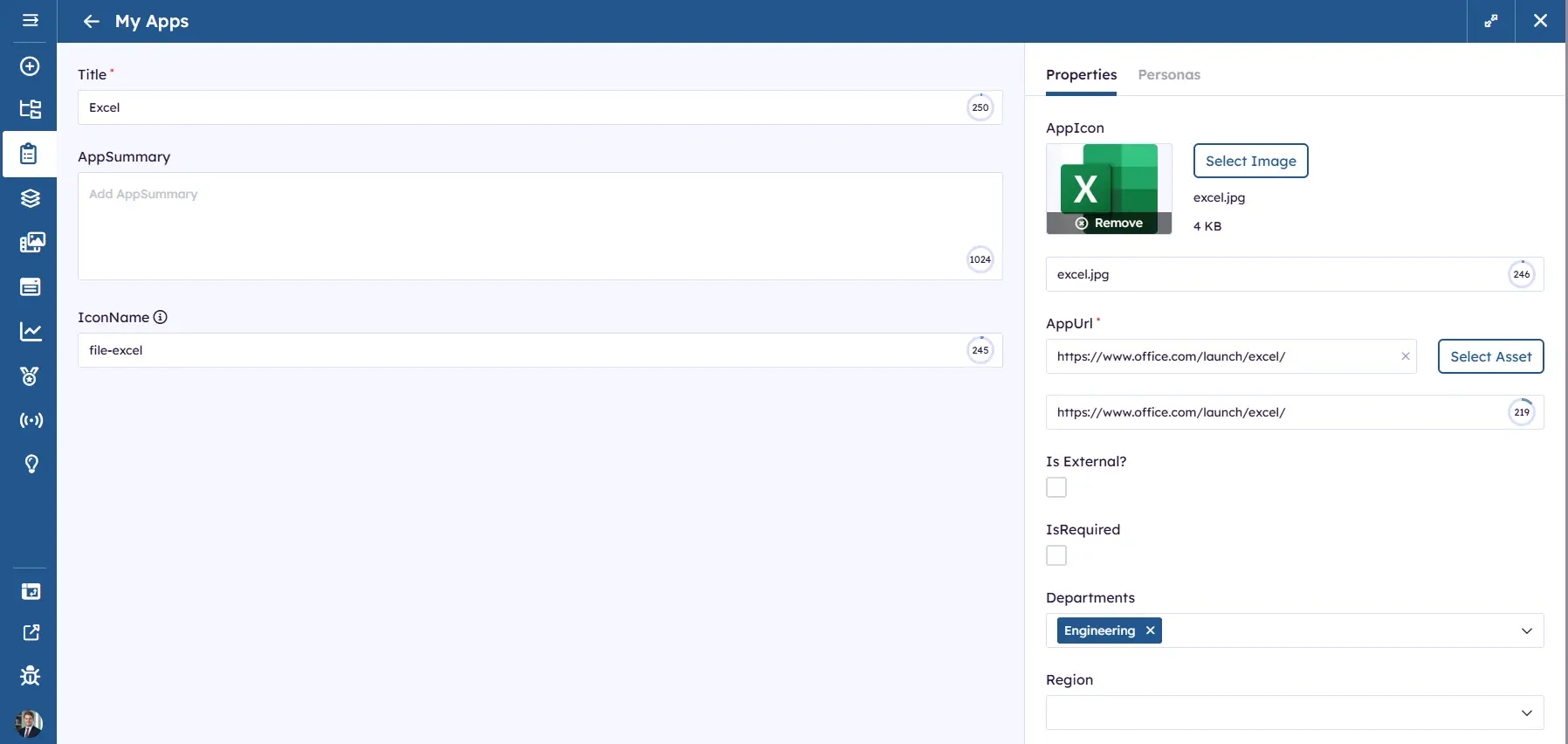
A Sample input page to add the Excel app can be seen below. Here the IconName (Font Awesome Name) file-excel is set so the App will display the Font Awesome Icon  if an Image is preferred then remove the IconName and the image will appear representing the App. Set the link to where this App navigates to. Determine if this is required for all user to always see on their LaunchPadWidget. Set a Department tag for filtering on the add section of the accordion. A Persona can be applied to this app.
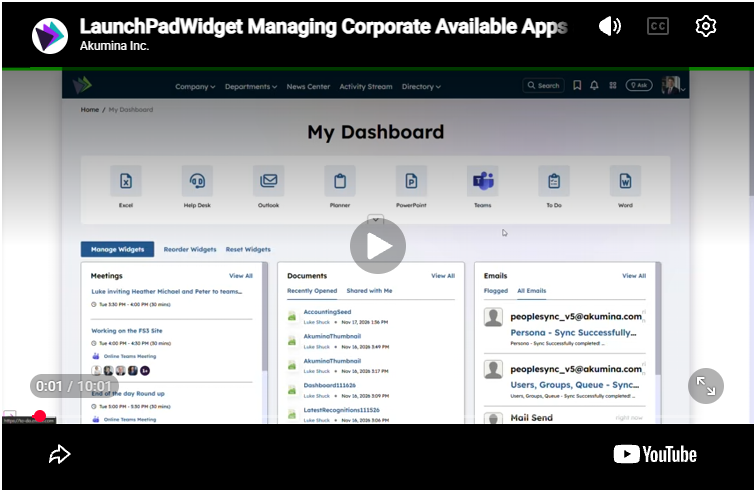
Watch the video below to learn how to expand LaunchPadWidget, add additional apps and apply Personas.
Details
-
- Widget Name: LaunchPadWidget
- Available With: Release Connect Install and above
- Content App Type: Author
- Content Type: AkuminaApps
- Content App Name: My Apps
- List Name: FoundationApps_AK
- Recommended Images Sizes: N/A
- Dependencies: N/A
Content
| Title | Title that will display for the App |
| AppSummary | OOTB N/A this is used by clients on custom views for expansion |
| IconName | This field is a Font Awesome “Title” by default it is headset, to find more Font Awesome title to display visit here. An example for excel would be file-excel which results to:
If IconName is blank the the AppIcon (Image) is set then the front end will display the set image:
If both IconName and AppIcon is blank then a default Font Awesome will display for the App Link image:
The Font Awesome color is controlled by the theme manager and is the sites link color.
|
| AppIcon | Optional Icon image to display for the App – if IconName is set then the corresponding Font Awesome will display. |
| AppURL | URL that a user will be taken to when they click on the APP button |
| Link Title | Displays the URL to the user when they hover over the button |
| IsExternal? | Navigates to an Akumina page. Checked by default |
| Is Required? | Check if the App is mandated by Corporate to appear on every users LaunchPadWidget; will display a lock on the App and cannot be hidden by a user.
|
| Department Tags | Displays the department tags associated with the App used in sorting |
| Region Tags | Displays the region tags associated with the App N/A used for expansion. |


Properties
| List Name | Name of Apps listed in FoundationApps_AK |
| Select List Columns | Columns in the SharePoint list that the widget is utilizing
For this example, the selectfields = Id,Title,AppIcon,IconName,AppUrl,Departments,IsRequired,Region |
| Group By | Category field for grouping items.
Defines the taxonomy field term store IDs to be displayed in JSON format. { “termStoreId”: “”, “termSetName”: “Category”, “terms”:{ “name”: “Departments”, “displayName”: “Departments”, “id”: “” } |
| Filter value | Tag filter values to appear in dropdown list; defaults to filter by Department. If filter value contains an ampersand, use the full width ampersand – & |
| Order By | Title – Default OOTB and the only choice that makes since. Title means to display the Apps alphabetically on the LaunchPadWidget as the user adds their preferred Apps. Other options include ID (which means the order in which corporate added the app) and Modified (which means order by when corporate modified the or Edited the App) |
| Order Direction | ASC – Means A to Z or DESC means Z to A – by Title |
| User Preference | OOTB and ALWAYS must be Checked – This is so that the widget looks for the user’s preference and the purpose of the Widget. |
| # of Items to Display | Number of items to display; OOTB defaults to 100 |
| Function to call after fetching data | OOTB -Blank (used for widget expansion): Name of the function called after data has been fetched by the widget. |
| Cache Interval | -1 – Default site cache
Sets the time, in minutes, that the data should be saved in the local browser cache of the current user.
Whole Number = Cache for specific time, in minutes |
| Function to call before binding the UI events | OOTB -Blank (used for widget expansion): Name of the function called after the UI has been rendered to the screen |
| Site Collection Url | Site collection Url where the SharePoint list defined in “List Name” to pull content |
| Show Add Apps button | OOTB = YES – This allow the widget to show this button there may be places where you want this widget but not require it to be expanded and modified by the end user. For example maybe you only want them to expand and add and remove apps on the My Dashboard page but not on the HOME page. If you set this to NO then the accordion expanding button will not appear:  |
Views
View Name: My Corporate Apps
View Description: Display the user’s preferred set of corporate available Apps in a slider.
View Preview:
View Name: Launch Pad View
View Description: Displays a list of Apps available to the current user in Mission Control and provides the ability to add apps to the list.
View Preview:
