Managing Recognitions in Voice
Employee recognitions do more than celebrate a milestone—they shape how people feel about their daily work and their future with your organization. When done right, recognition highlights core values, creates moments of genuine connection, and reminds team members that their efforts aren’t just noticed—they are truly valued.
True engagement happens when appreciation is personal, timely, and meaningful. When employees feel seen as individuals rather than just names on a tenure list, loyalty naturally grows and company culture strengthens.
Akumina’s Recognitions move away from stale, checkbox appreciation and shift toward recognition that people appreciate on a peer-to-peer level.
Here we can create custom recognitions on a category level that can be granted to our team mates. Voice is the location where Recognitions are managed.
To learn more about how to enable Recognitions on your site and create meaningful recognitions watch the video below:
Enabling Recognitions
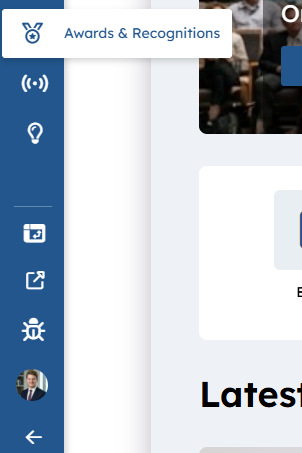
To enable recognitions as an administrator expand Voice and select Awards & Recognitions
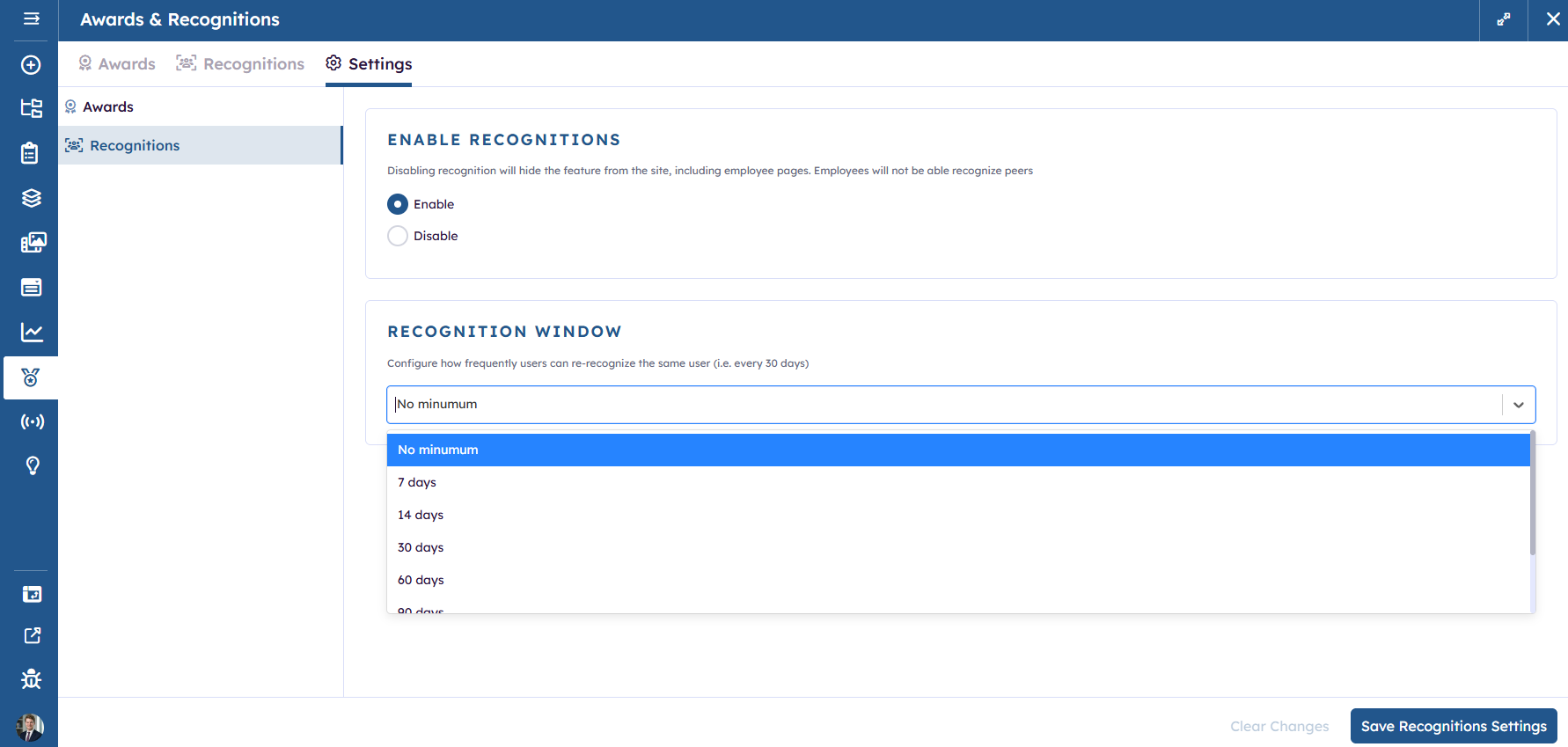
Select the Settings Tab and Recognitions. Under the ENABLE RECOGNITIONS area click Enable. Under “RECOGNITION WINDOW” , the administrator can set a minimum number of days that a logged in user can recognize the same person for all recognitions. This can be left as “No minimum” or set to a number of days or months however please note you can refine this further when you create or edit a recognition.
Click on  to store changes.
Creating Recognitions
Click on Recognitions Tab OOTB there is one category “Thanks” (seen on the left column). Click on the + under “Categories” to add a new category such as Excellence.
Select a category and click on  to add a new Recognitions
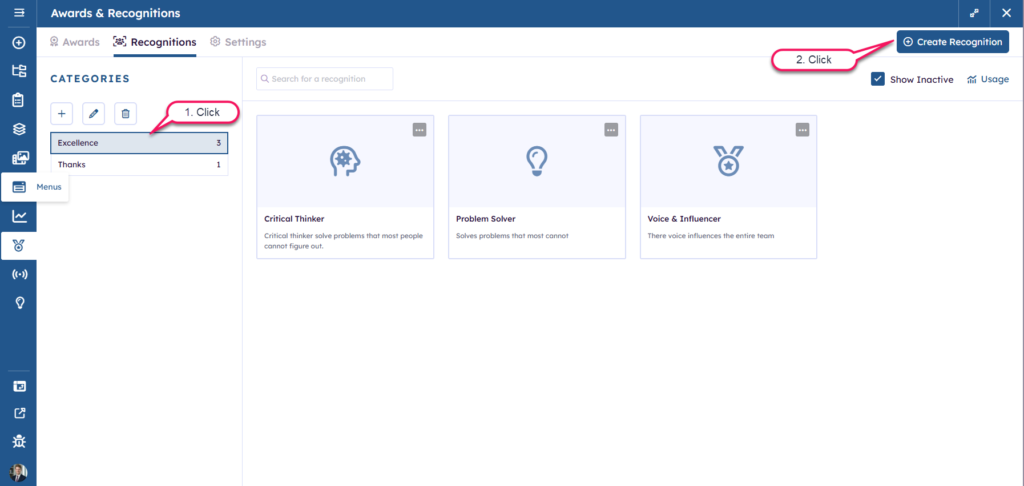
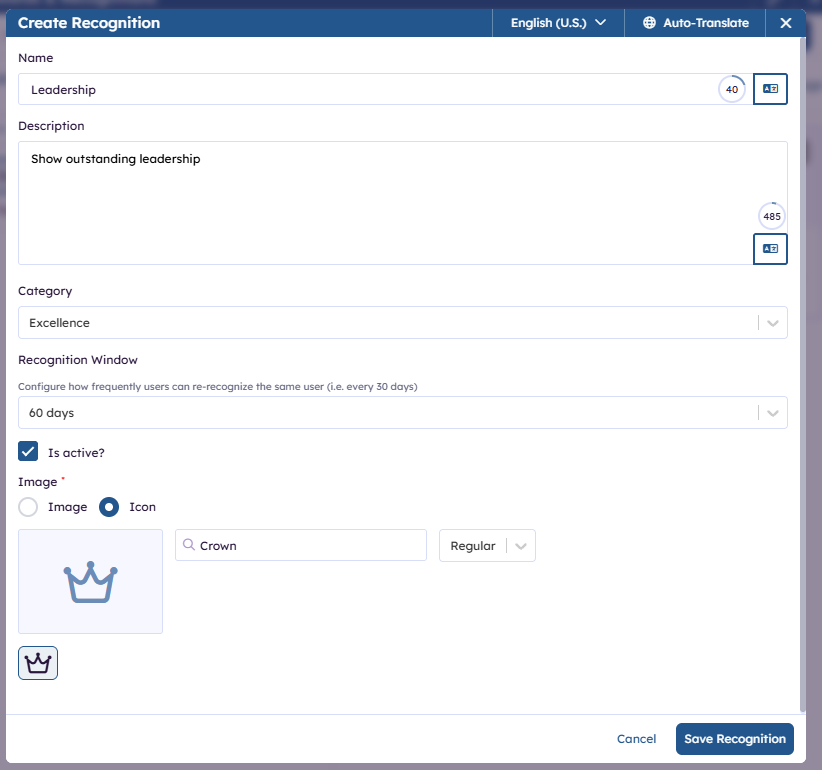
On the Create Recognitions modal enter:
- Name of Recognitions e.g. Leadership (click on auto translate)
- Description e.g. Show outstanding leadership (click on auto translate)
- Set the Category e.g. Excellence
- Recognitions Window is how often can you recognize the same user e.g. 60 days
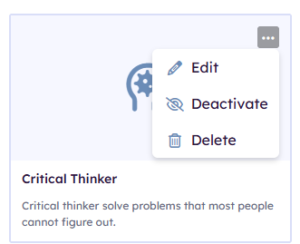
- Click Active – if you want this to be live right away this can also be changing on the category listing view above by clicking on:
- Select an image from an image library or a icon (font awesome) by typing in a search item such as crown then selecting the crown.
- Click on Save Recognition.
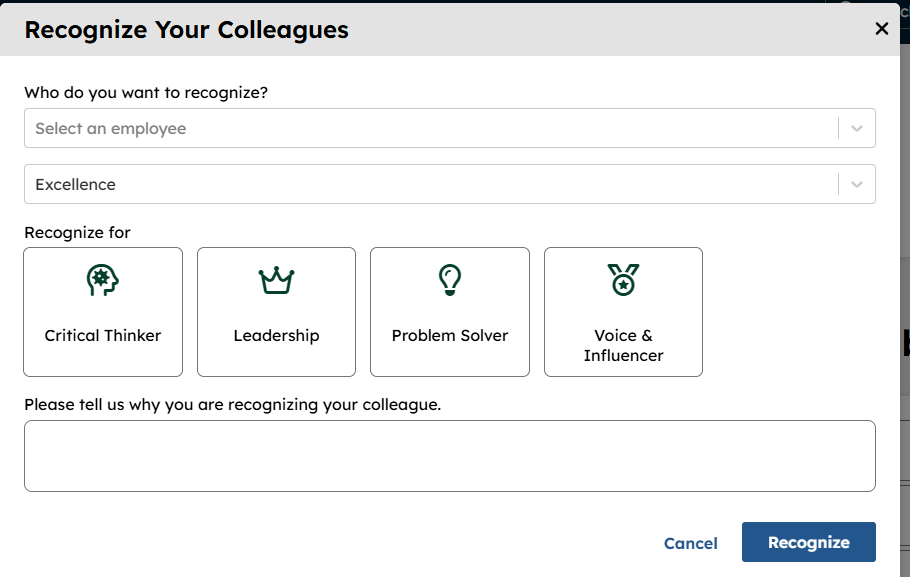
On the front end site when  is selected on Latest Recognitions Widget, Employee Directory, and Employee Detail page, select category Excellence to see available recognitions to grant to a user in that category.