
Foundation Corporate Site Reference Guide Starting at Version 7.0.2602.0321
Akumina’s Home/Corporate landing site, available starting in release 7.0.2602.0321, is designed to accelerate an intranet deployment. This pre-built environment offers a structured starting point for organizations to evaluate default widgets, which can be easily reconfigured, relocated, or supplemented. By leveraging a pre-designed framework that integrates corporate branding. An enterprises can rapidly theme the site, populate content, and streamline the transition to a fully operational intranet launch.
Through out this document you will see reference to Akumina’s Content Management System (CMS) called Voice. To learn more about voice and it’s many featured please visit here.
What In the Install Package for the Out-Of-The-Box Intranet Site
The intranet install includes a master page, supporting pages, main navigation, navigation elements, forms/forms reporting, surveys, recognitions, rewards … and much more.
The Intranet Home or Corporate Landing Page
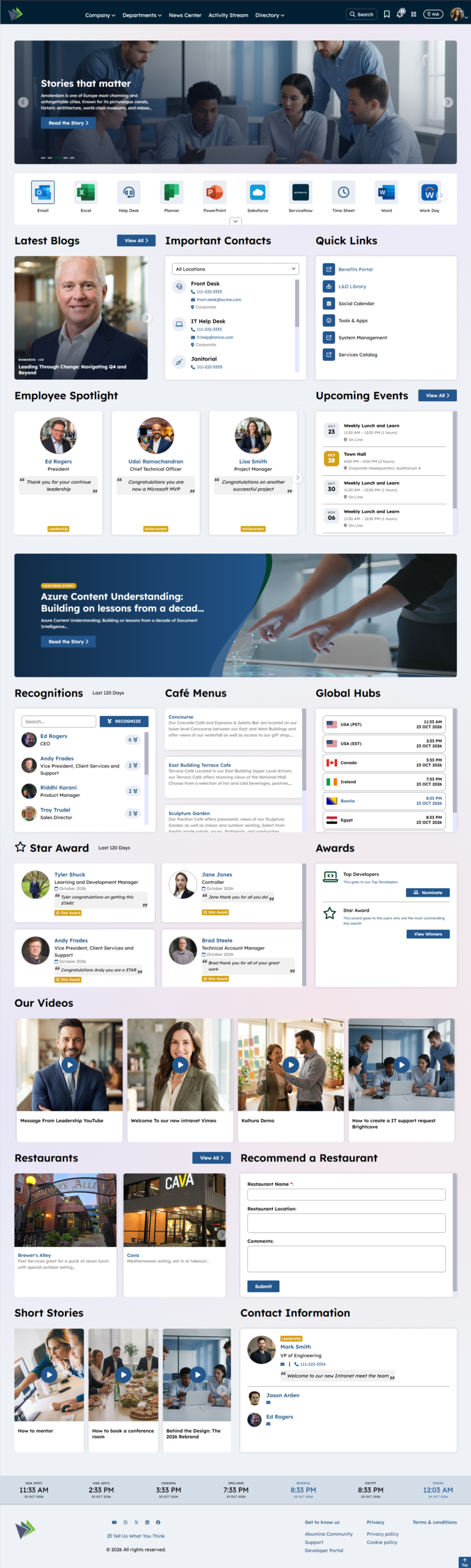
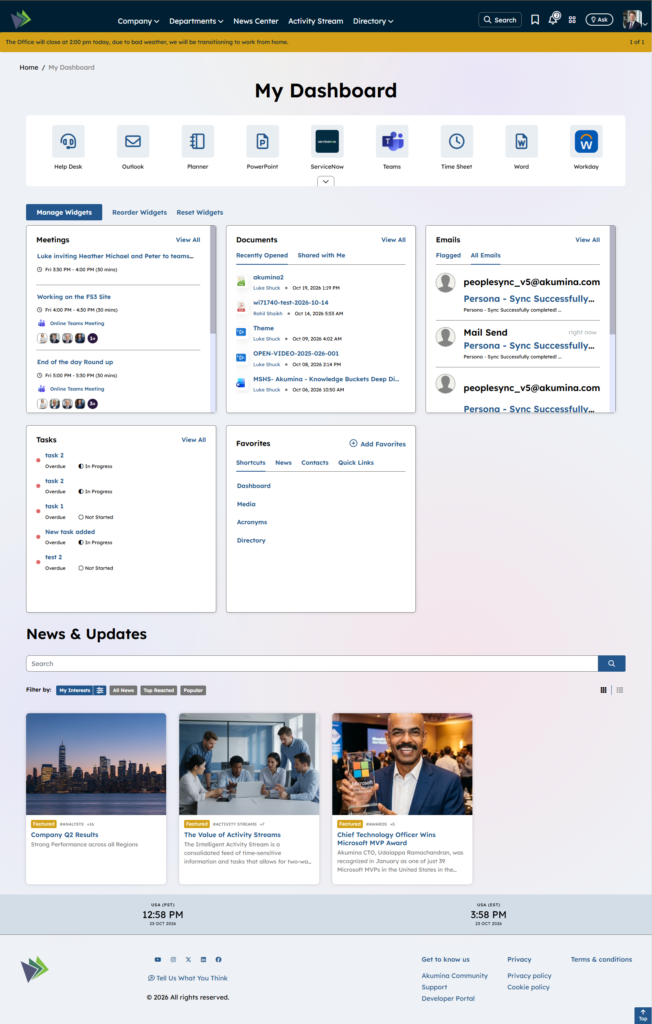
Below is what is delivered out-of-the-box as the Corporate Landing Page. This is a starting point, additional widgets can be added or removed as desired by the enterprise. This site can easily be re-theme to match the enterprises requirements. Please visit here to learn more about the Akumina “Theme Manager” and rebranding the site.
Understanding the Master Page
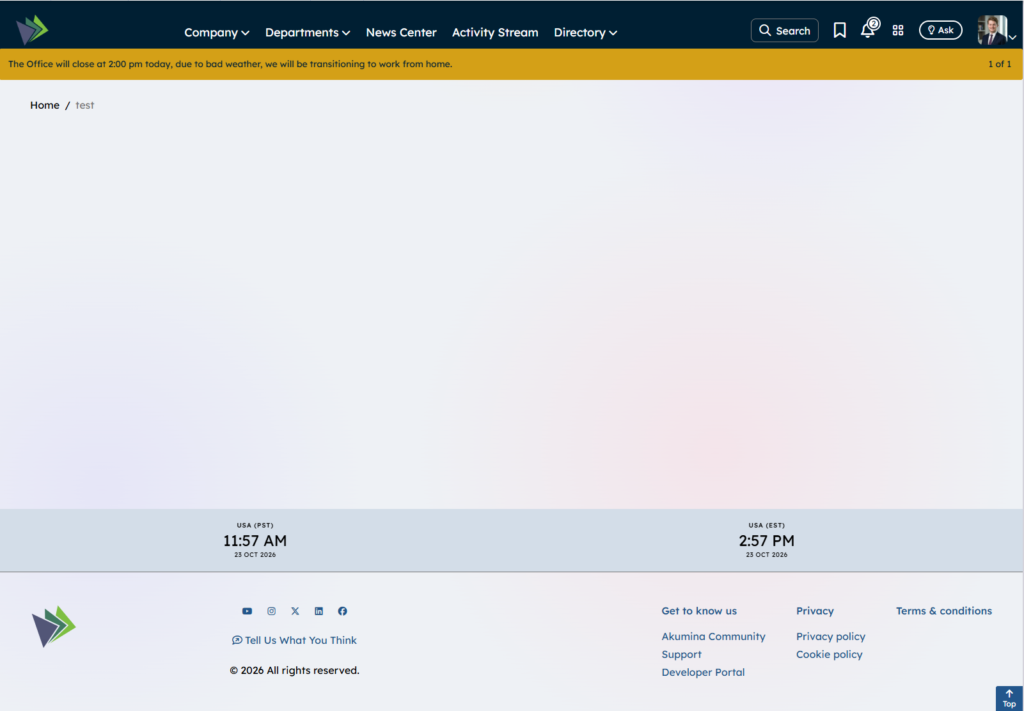
The Master page includes a Header, Footer, and Page background color or image. All elements can be rebranded and many elements can be removed via the “Theme Manager”.
Header

The Header ribbon background and elements colors are configurable in the “Theme Manager“. Elements on the Header Include:
- Site Logo
 – Configurable via the “Theme Manager”, when selected, navigates the user to the Corporate Home page.
- Navigation Menu
 – Managed via a “Voice Menu Module”, click here to learn more. Theming of the background color of the navigation dropdown is configurable in the “Theme Manager”
- Search Button
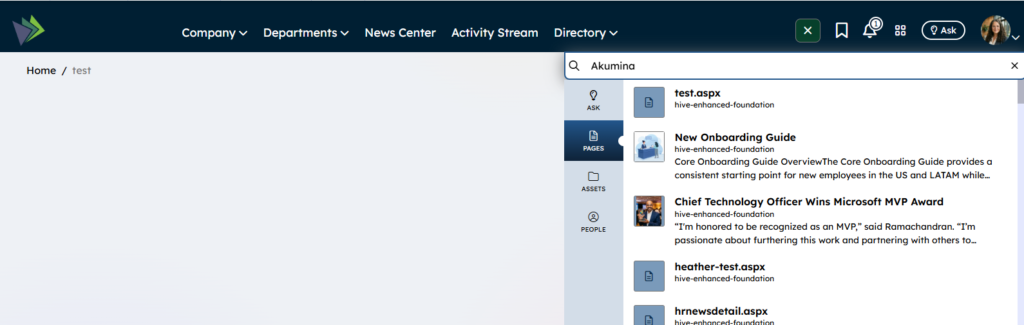
 – Configurable in the “Theme Manager” to display or not. Click on Search button a slide out will appear allowing the user to enter a search term, select a returned result, refine or click ENTER and the user will navigate to the search results page. The Search button is a Graph Search Tabbed Widget, to learn more about search click here.
- Bookmark
 – Configurable in the “Theme Manager” to display or not. Using Favorites Widget, a user can store or access their personal links via categories, click here to learn more.
- Notification “Bell”
 – Displays a count of actionable items that need the user’s attention using the ActivityNotificationWidget, to learn more click here.
- My Dashboard
 – when selected navigates the user to their dashboard page where they can configure and access their personalization widgets.
- AI Button
 – If the site is configured with the “Artificial Intelligence” License and the Theme is configured to display this AI button then the end user will see this button. The AI icon and label is configurable in “Voice”, “AI Experience Manager” Settings by the site Administrator to learn more click here. Click on the AI button and a slide out will appear allowing the end user to interface with Akumina’s AI Experience.
- User Profile
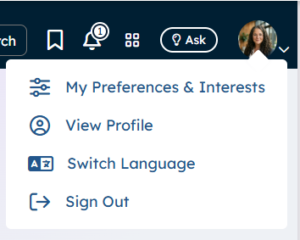
 – The Administrator can configure for the entire intranet to display profiles images as round or square throughout the site. This configuration is done in the “Theme Manager”. Select the user Profile and a dropdown menu will appear:
-
-
- My Preferences & Interests – Configure your personal preferences (used to filter articles and content of your interest), to learn more visit here.
- View Profile – Will navigate the user to their Employee Detail Page – where they can customize their profile, view awards and badges (Recognitions) that have been presented to them.
-
-
-
- Switch Language – Allows the user to change their preferred language on a Multilingual site.
-
-
-
- Sign Out – logs the user out of the intranet.
-
- Bread Crumbs
 -Displays the page folder structure where the user is at in the intranet site. The page folders are managed by the site administrators in Voice
  to learn more about the Bread Crumbs Widget visit here.
Body
The background of the page or body on the master is configurable in the Theme Manager.
Footer
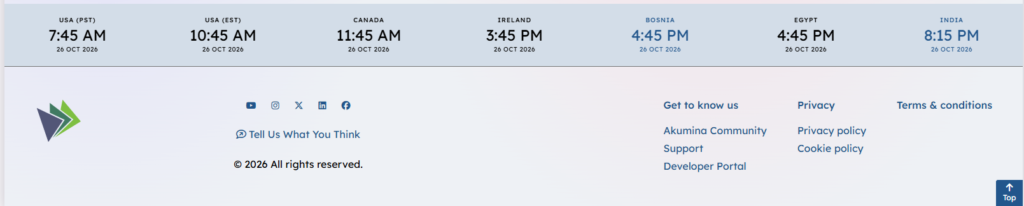
- Global Hubs Widget
 – Displays Titles, times, dates and links (optional) of important locations. The times can be configured to display in 12 hour format or 24 hour format. Whether to display this widget on the footer is configurable in the “Theme Manager“. To learn more about the Global Hubs Widget visit here.
- Footer Logo and Logo URL
 – The footer logo and logo URL is configurable in the “Theme Manager“.
- Social Icons and Links
 – Whether to display the social icons is configurable in the “Theme Manager“. The Social Links is managed in Voice via the Menus module, in menu titled “Footer Social Links”. To learn more about the Voice Menu Modal visit here.
- Page Feed Back –
 – Links to a popup modal that allows the end user to enter their feedback on a page. The survey can be managed as well as the results reviewed by only the owners of the survey on the Page Feedback page. To learn more about creating and managing a Akumina Flow Survey click here.
- Footer Links
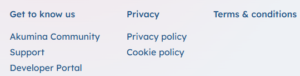 – Whether to display the footer links is configurable in the “Theme Manager“. The links are managed in Voice via the Menu module, in menu titled “Footer Links”. To learn more about managing links in the Voice Menu module visit here.
- Footer Background Color – In the Out-Of-The-Box master and theme, the footer background color is configured to be “transparent”, meaning it displays on top of the color or image configured as the background of the page, to learn how to change the background of the footer please visit the “Theme Manager“.
Widget Instances Deployed on the Home Page
The Widgets deployed on the home/corporate landing page is not fixed, it is meant to be a starting point. Widget can be removed or added as desired we will start with what is there out-of-the-box then give some examples of modified home pages. Widgets on a home page are meant to be click to learn more or communicate the latest to the logged in user.
Row One Deployed Widgets
Below is a single row of widget displayed in one column layout, to learn more about page builder and editing pages please visit here.
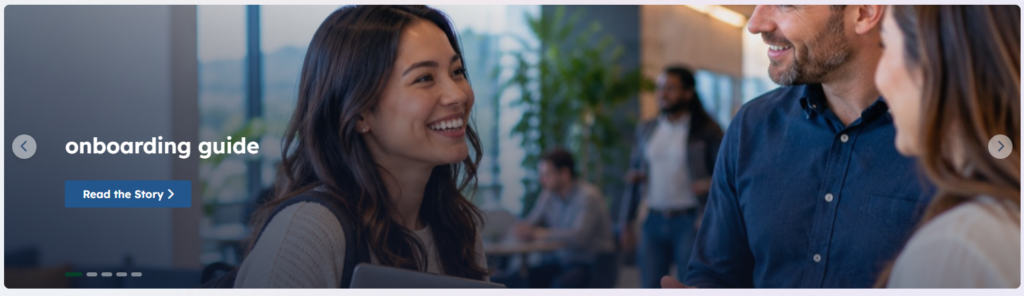
Latest Featured Widget
This one column, home page banner, is pulling data from an article list (“Structured Content Pages“), displaying the most recent articles (via Publish Date) or most recent “Featured” (configurable on the widget) via the “Latest Featured Widget“, to learn more click here.
Row Two Deployed Widgets
Below is a single row of widget displayed in one column layout, to learn more about page builder and editing pages please visit here.

Launch Pad Widget
A personalized widget that allow the end user to select from a curated set of apps and quickly access their preferred apps. The curated set of Apps are managed by the authoring team in Structured Components. To learn more about the Launch Pad Widget visit here.
Widgets can be added to the page in a row/column format or simple by columns in the below example is a Row of Widget that are displayed in three columns
Row Three Deployed Widgets
Below is a single row of widget displayed in three columns layout, to learn more about page builder and editing pages please visit here.
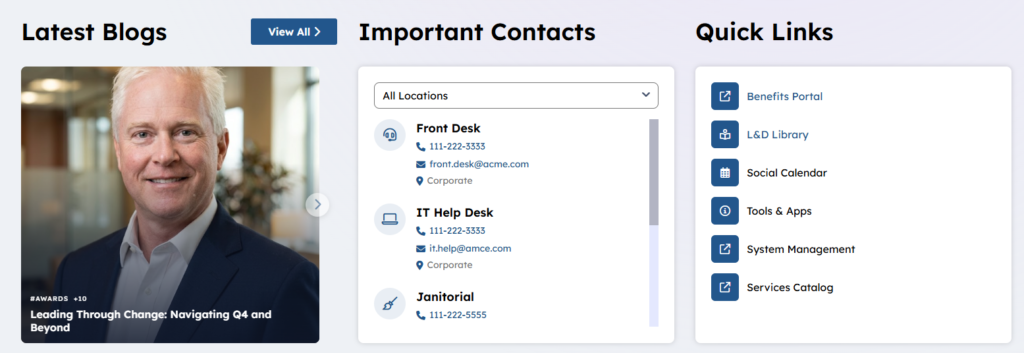
Latest Blogs
Above the Latest Blogs is a Latest Feature Widget, titled on the widget property “Latest Blogs”. It is pulling the latest data from the out-of-the-box Blogs_AK list. The Latest Featured Widget in this case has a “View All” link and link location configured on the widget property when selected will link the end user to the Blogs listing page. To learn more about the Latest Featured Widget visit here.
Important Contacts
Important Contacts is using the Important Contacts Widget, this widget will display important contacts based upon a location, this is managed in the “Structured Components” to learn more about the Important Contacts Widget visit here.
Quick Links
The “Quick Links” is a QuickLinks Widget uses a view that displays a set of links one level deep with font awesome icons. To learn more about QuickLinks Widget visit here. To learn more about managing a set of links using the Voice “Menu Module” visit here.
Row Four Deployed Widgets
Below is a single row of widget displayed in two column, left focus layout, to learn more about page builder and editing pages please visit here.
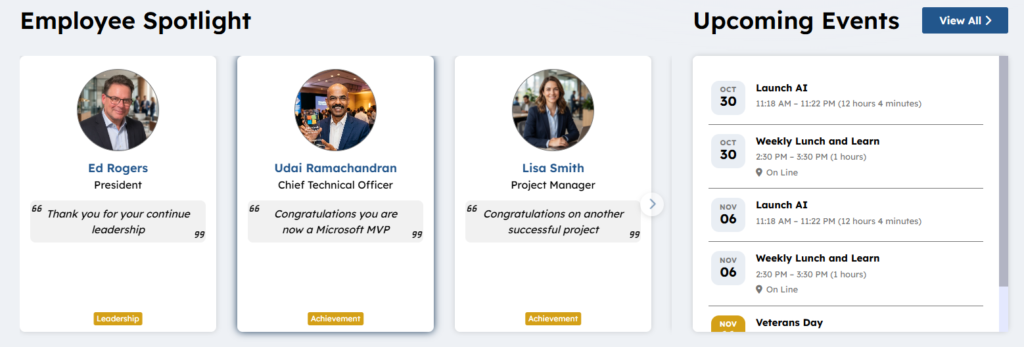
Employee Spotlight
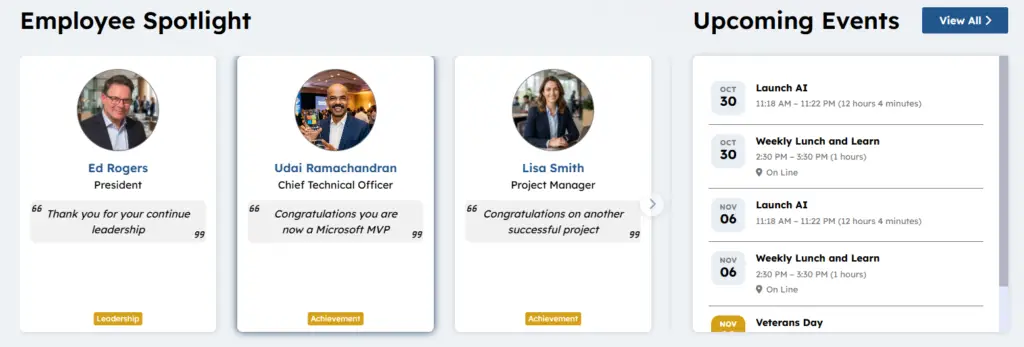
The left column focus displays the “Employee Spotlight Widget“, displaying highlighted employees with an optional message and optional tag displaying their achievement type (which can be expanded). To learn more about the “Employee Spotlight Widget” please visit here. When a spotlighted user is selected, the end user will navigate to the select employee’s detail page.
Upcoming Events
The right column displays a Upcoming Events Widget, which can be configured to display a number of events and to highlight those events that are featured from a specific calendar. When an event is selected the end user will navigate to the event detail page where the event can be downloaded and added to their calendar. The “View All” is configurable to a specific page where a calendar displaying all events can be viewed. Visit here to learn more about Upcoming Events Widget.
Row Five Deployed Widget
Below is a single row of widget displayed in one column layout, to learn more about page builder and editing pages please visit here.
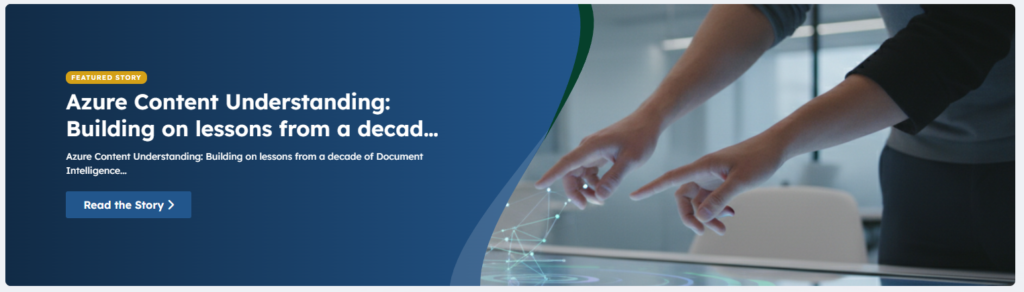
Latest Featured Widget
Below is the Latest Featured Widget which could point to a List of specific highlighted articles that can also appear on you news listing or not but are displayed here based upon the latest article. This widget in this case is configured to bring in only 1 item so that it acts as a break in your page which highlights something important and since we are displaying only 1 item the banner control on the view will not appear. This widget can be configured in the widget property to bring in more items and in that case the banner control will appear. To learn more about the Latest Featured Widget and what types of items it displays along with it’s eight views out-of-the-box visit here.
Row Six Deployed Widgets
Below is a single row of widget displayed in three columns layout, to learn more about page builder and editing pages please visit here.
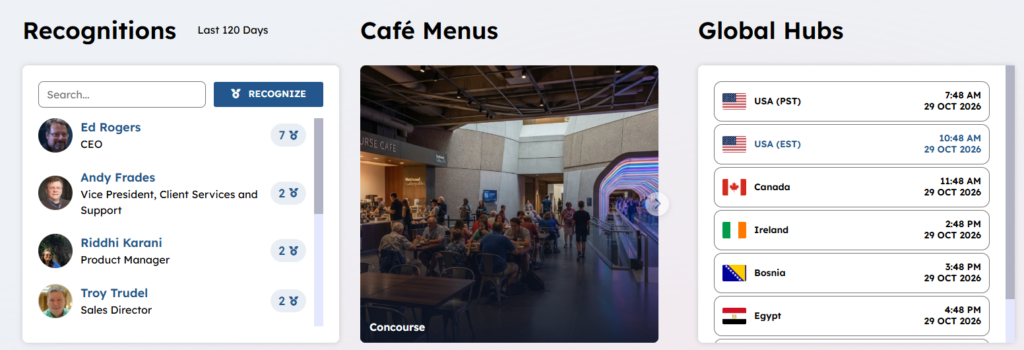
Recognitions
The Left column is displaying the Latest Recognitions Widget to learn more visit here. This widget is configurable to display the user who have been recognized by their fellow employees. The “Recognitions” or Badges or Kudos that can be granted are configurable in Voice, to learn more visit here. Recognitions are not work flowed no one has to approve them. Once a user is recognized their count goes up and the “Badge” with the detail message on why it was presented to them, will appear on their employee detail page. Click on a user to see their badges/rewards. This widget can be configured to pull in users and display them by who has the most recognitions/badges or just display the user over X number of days alphabetically. The over the past number of days is currently set to 120 days, configurable on the widget property. There is a SEARCH input field on this widget that allows filter of the user by name. Whether the job title appears under the user name is configurable and comes from the synced user data.
Cafe Menu
The center column is using a Latest Featured Widget but instead of pulling in the data but the latest is it configured to pull the data in and sort by Title alphabetically. This widget does not have to include all to organizations menus across all locations but can be used on say regional landing pages to display the appropriate cafe menus. To learn more about the Latest Featured Widget visit here.
Global Hubs Widget
The right columns is displaying a view of the Global Hubs Widget. The Widget displays Titles, Flag (based on a country code), times, dates and link (if set) of important locations. The times can be configured to display in 12 hour format or 24 hour format. Setting a link for a location is optional if it is set then it is highlighted in the sites “Link” theme color (example below USA (EST) is highlighted). This can point to the same content that is displayed in the Footer using the same “Structure Content App” or it’s own list configured on the widget properties. This view can be used as a quick link to location landing pages. To learn more about the Global Hubs Widget visit here.
Row Seven Widgets Deployed
Below is a single row of widget displayed in two column, left focus layout, to learn more about page builder and editing pages please visit here.
Award Winners
The left column display the Award Winner Spotlight Widget. In order for content to display, Awards need to be configured on your site (visit here) and a group of winners from a nomination pool need to be selected, visit here to learn more about selecting the winners. This widget can be configured to display the winners from a specific award in the example below “Star Award” winners or all Awards granted over the last X days, in that example below that is configured to be over the last 120 days. The highlighted tag represents the award granted example:  , click on the user’s tile to navigate to their employee detail page to learn more about this award winner and all of the awards they have been granted. Visit the Employee Directory page (peoplefinder.aspx) and notice an award winner will have a “Award” medal signifying that they have been granted an award.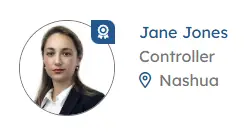
Awards
The right columns displays the Award Spotlight Widget. In order for content to display, Awards need to be configured on your site (visit here). This widget displays a list of awards that the end user has access to in order to Nominate or view current and previous winners. Click on the Nominate button and navigate to the Nomination form for this award, this is a dynamic page (AwardDetail.aspx) that will display the appropriate nomination form.
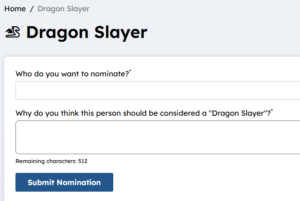
The definition of the form and the award is configured in Voice in “Awards & Recognitions” in the Award section to learn more visit here.
Row Eight Deployed Widget
Below is a single row of widget displayed in one column layout, to learn more about page builder and editing pages please visit here.
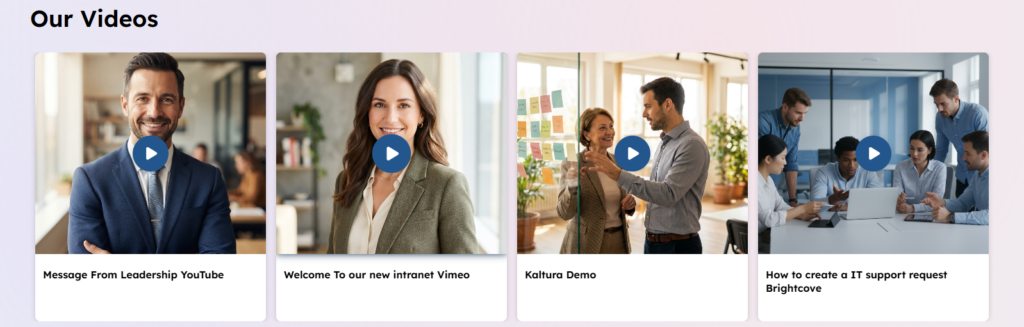
Our Videos
The Video Widget managed in a Structured Component Slider App, allows the content author to display a set of videos. The component requires for each video a Title which is displayed below the video item, a link to the video and a thumbnail image. Because we are using a slider app the order of the videos are managed by the author as well as whether a video should show or be deactivated from the component of list of videos. There are two views for this Widget this one is ideal for 16:9 videos.
Too learn more about the Video Widget visit here.
Row Nine Deployed Widget
Below is a single row of widget displayed in two column layout, to learn more about page builder and editing pages please visit here.
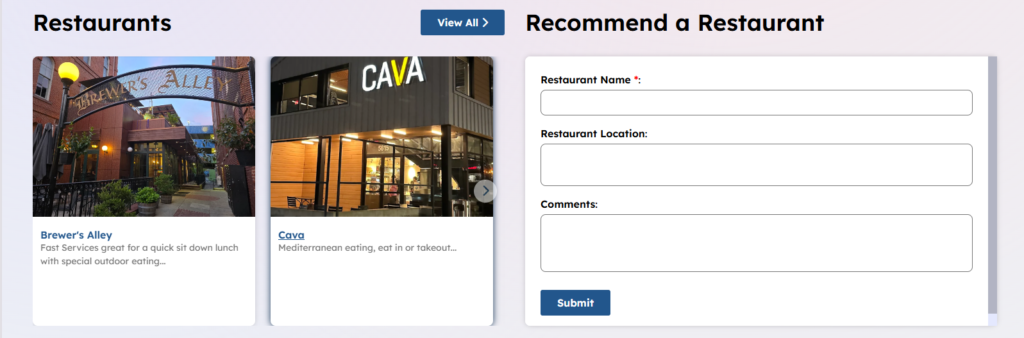
Restaurants
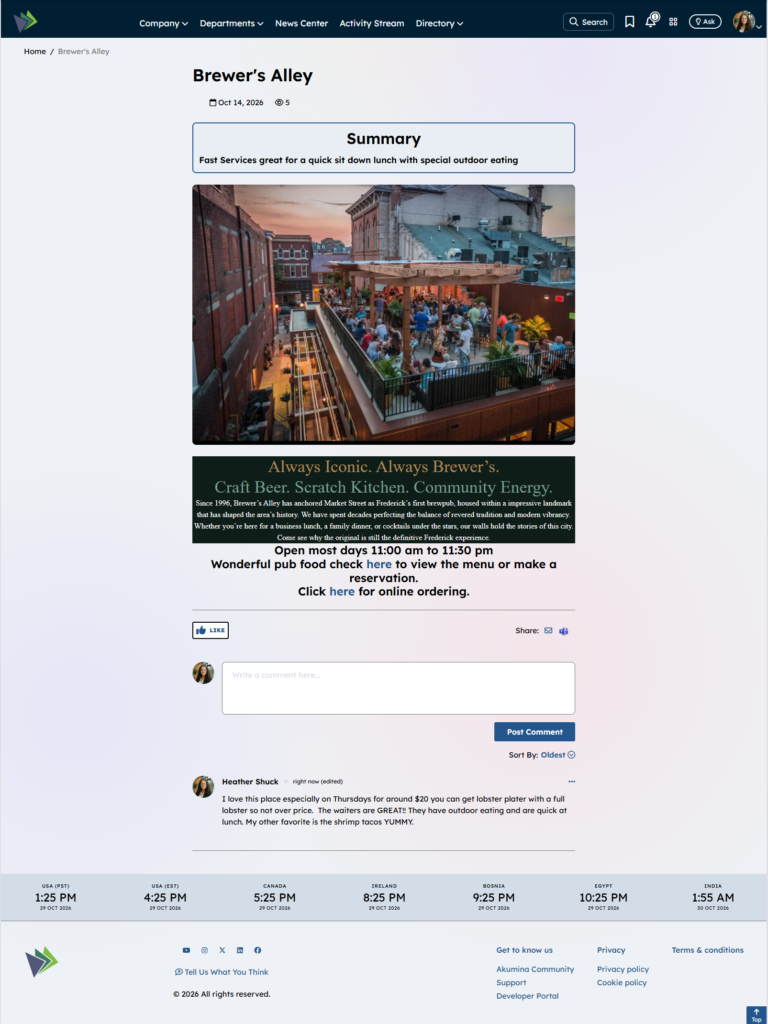
The left column is displaying the Latest Featured Widget configured to pull in the alphabetically 5 Restaurants in a list that is maintained in Structured Pages. The Restaurants are displayed in alphabetical order. Click on the Restaurant tile, the detail page where a content author has added information regarding this restaurant. The body could contain a sample menu which they was pulled from the internet the Summary field may be the location hours and and a link to order for takeout. This widget teams up the the “Recommend a Restaurant” form. A set of takeout menus can be a way to drive employee engagement. On the detail page the employees can comment on their experience or react (give it a thumbs up) to the restaurant. Employees are more inclined to react and comment on a non corporate article, example someone may enter a comment about their favorite item to order or share via email or teams a place to meet  .
.
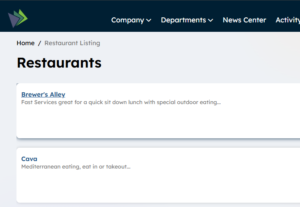
The “View All” links to a listing page (restaurantslisting.aspx) , displaying that displays all of the Restaurants in the list (currently configured alphabetical order) using a different view of the Latest Featured Widget.
Recommend a Restaurant
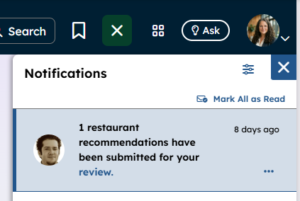
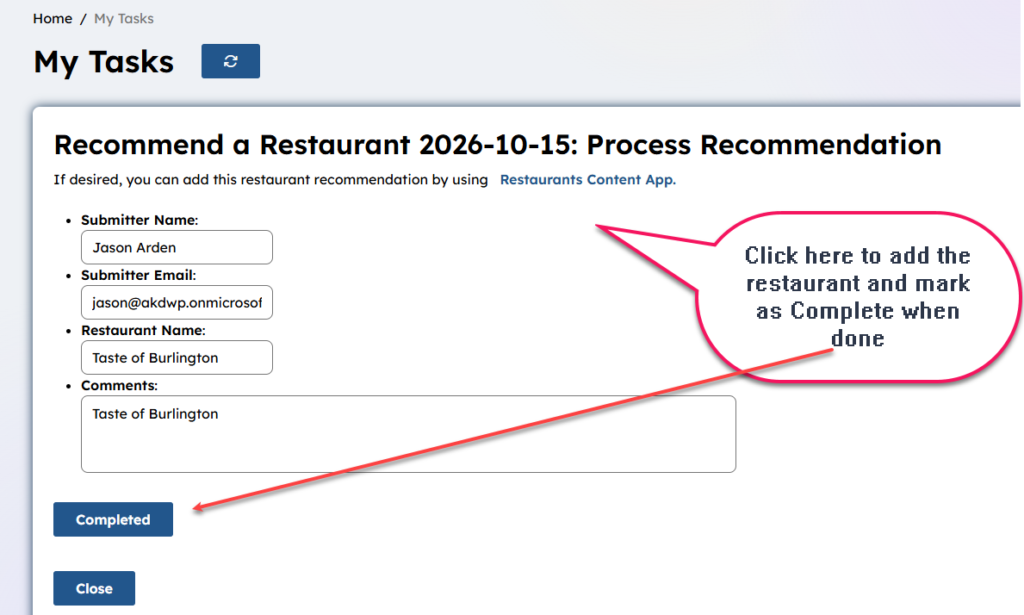
The right column contains an Akumina Flow User Widget that has been configured to use a flow that has been imported from our community page. This is an example of a basic form that requires a TASK that the owners of this form will be assigned to work found on the “My Tasks” page. This form provides inputs to the Structure Component Page “Restaurants” whose content is displayed in the right column of this row. When a recommendation is made the OWNERS of the flow or form will be notified via our notification bell  and receive a link to the “My Tasks” page, where they can review the form and complete the task associated with the form (which is to add a new restaurant if desired). This type of notification is configured to roll up so only one notification will be receive with a count incremented for the number of items waiting upon you review:
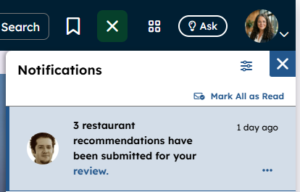
When the review is selected above the Owner of the form will navigate to the “My Task” page where they will see a list of tasks that they have permissions to complete. In this case their task is to decide to add the review to the Restaurant list or not. Below is what is on my “MY Tasks” list of items I am allowed to work.
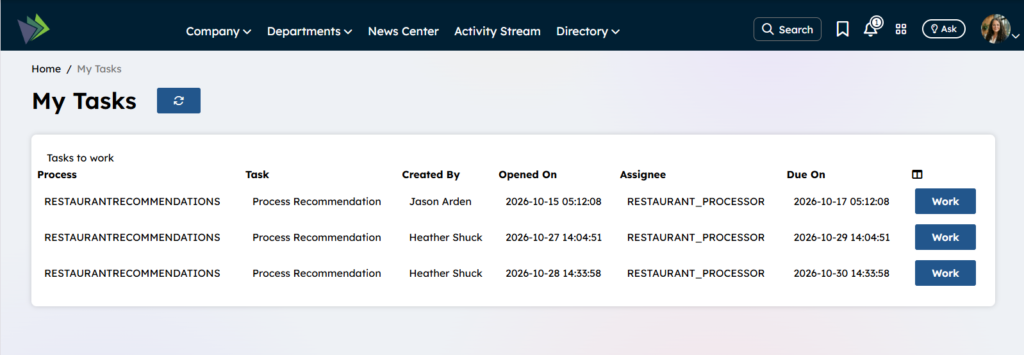
Click on Work
Row Ten Deployed Widget
Below is a single row of widget displayed in two column layout, to learn more about page builder and editing pages please visit here.
Short Stories
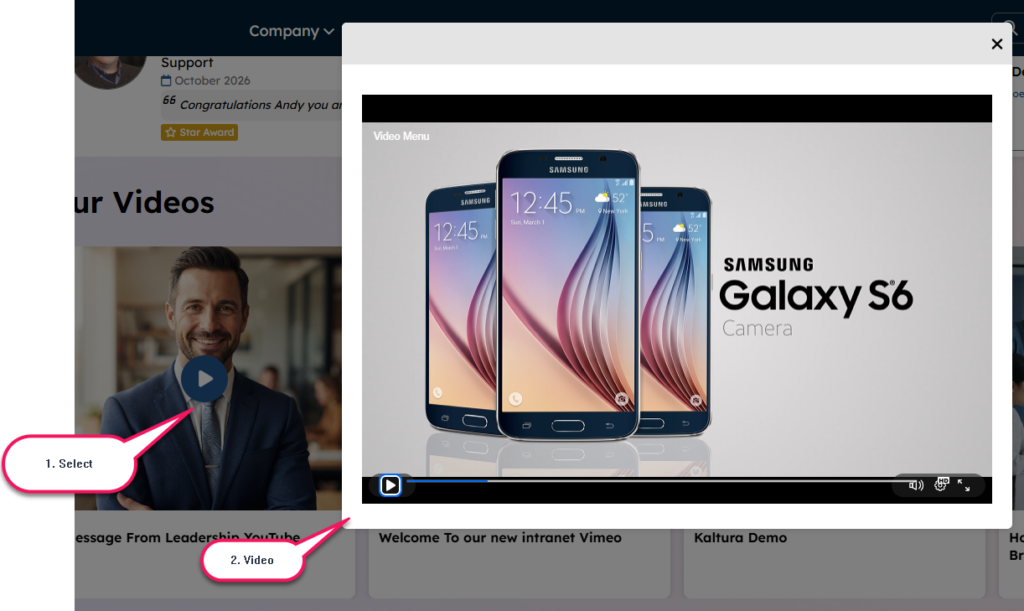
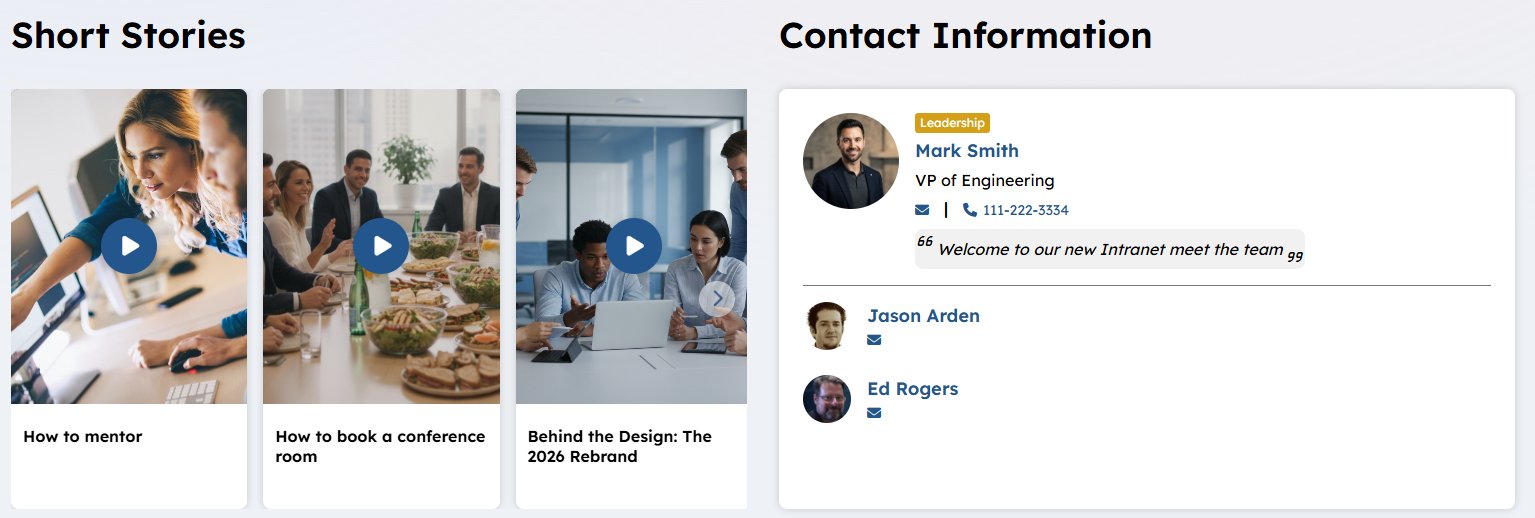
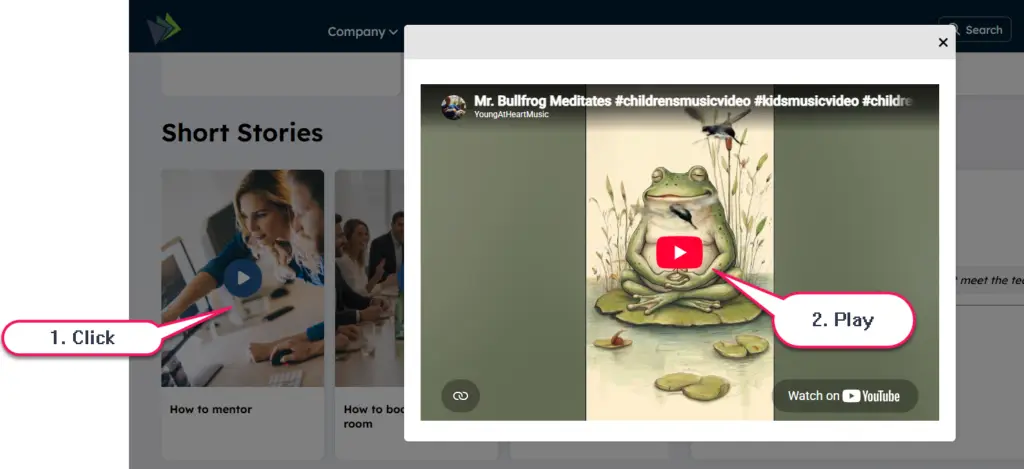
The left column contains the Video Widget managed in a Structured Component Slider App, allows the content author to display a set of videos. The component requires for each video a Title which is displayed below the video item, a link to the video and a thumbnail image. Because we are using a slider app the order of the videos are managed by the author as well as whether a video should show or be deactivated from the component of list of videos. There are two views for this Widget one that makes is obvious it is for a short videos 9:16 the second view is more obvious for the long or 16:9 videos. Click on the video and the a modal will appear where the video can be displayed. To learn more about the Video Widget visit here.
Contact Information
The right column is displaying a Page Contacts Widget to learn more visit here. The title of this widget is currently set to “Contact Information” this field could display any title such as “Site Owner”, “Page Contact” or “Key Contributors”.. There is one featured person that can be selected by a people picker. The email of the user can be overwritten by an email input field for the key person. The phone number will only display if it is manually set on the featured persons input field “phone”, it could be their personal phone or a department phone. The optional message from the featured person will display. The other users are contributor picked via a people picker. Click on a user and you will navigate to their employee detail page where all their personal contact information exists. Click on any  icon and the user’s mail app will open, prepopulated with the appropriate email address to contact.